
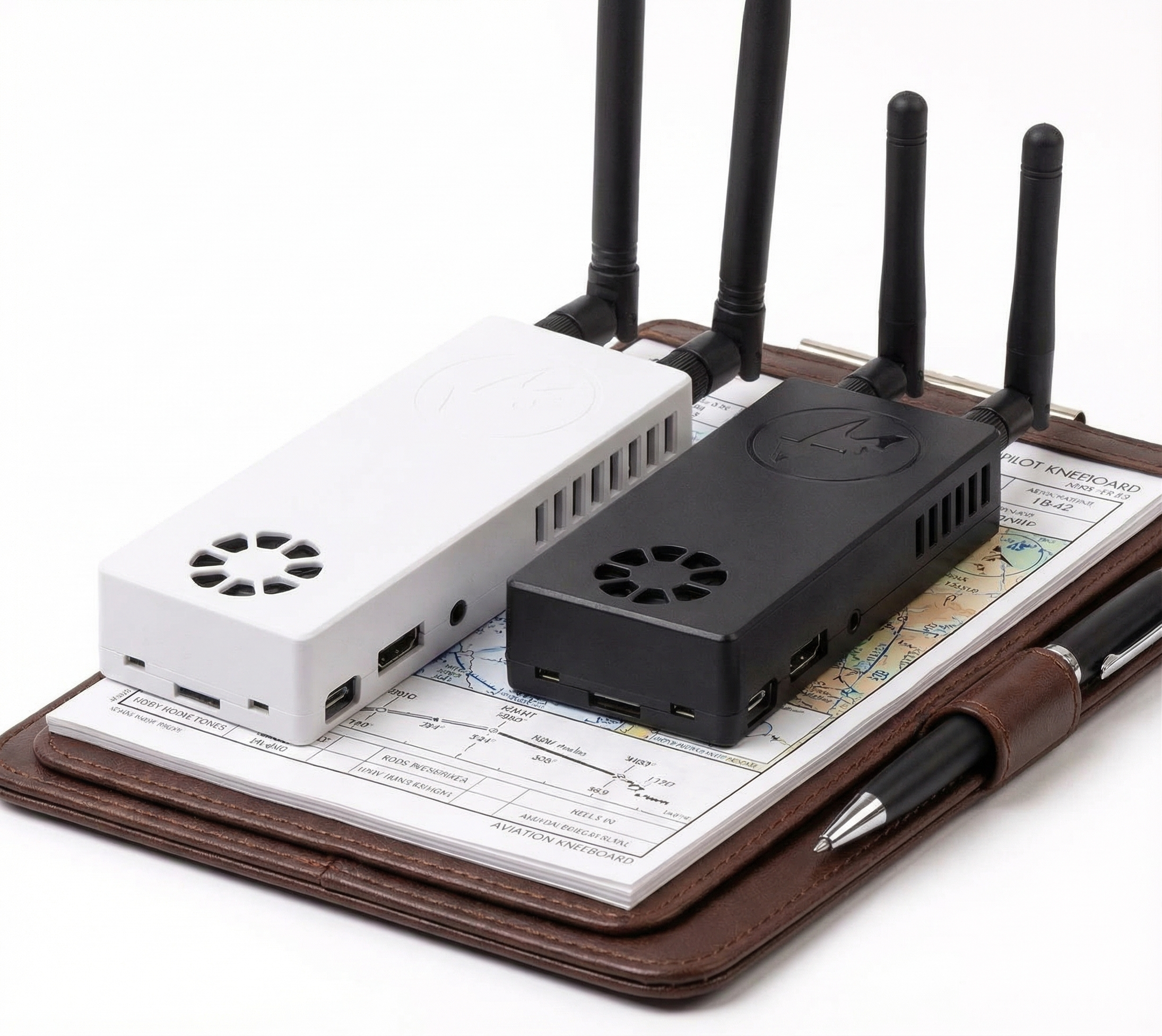
ForeFlight is the most popular EFB among Stratux users, and for good reason—it’s powerful, well-designed, and plays nicely with third-party hardware. But there are a few setup quirks that trip up new users.
This guide walks you through the full setup, from first connection to synthetic vision, with fixes for the most common issues we see in support tickets.
Step 1: Power Up and Connect
This part is straightforward, but let’s make sure the basics are solid.
Power On Stratux
Plug in the battery and wait for the lights:
- Red light = Power on
- Green light = System ready
Wait until the green light is solid. This takes 30-60 seconds after boot. If it’s flashing or off, see the troubleshooting section at the end.
Connect to Stratux WiFi
On your iPad:
- Open Settings → WiFi
- Select the “stratux” network
- Enter the password (printed on your case label, usually “stratux”)
- Important: When iOS says “No Internet Connection,” tap “Use Without Internet”
This last step is critical. iOS will try to switch back to cellular if it thinks the WiFi is “broken.” You need to tell it to stay connected even without internet.
Open ForeFlight
Launch ForeFlight. It should auto-detect Stratux within a few seconds.
To verify:
- Tap More → Devices
- You should see “Stratux” listed
- Status should show green checkmarks for:
- GPS (if enabled)
- ADS-B Traffic
- ADS-B Weather
- AHRS (if you have the AHRS upgrade)
If you see this, congratulations—you’re connected. If not, jump to the troubleshooting section.
Step 2: Configure GPS
Here’s where things get interesting. You have a choice: use Stratux GPS, or use your iPad’s built-in GPS.
WiFi-Only iPad
If your iPad doesn’t have cellular, it doesn’t have GPS. You must use Stratux GPS. Without it, you have no moving map.
To enable Stratux GPS:
- ForeFlight → More → Devices
- Tap on Stratux
- Enable “Use as GPS Source”
Done. Your iPad now has GPS.
Cellular iPad
If your iPad has cellular, it has its own GPS. You can use either Stratux GPS or iPad GPS.
Use Stratux GPS if:
- You want synthetic vision (it integrates better with AHRS)
- You want a single position source for everything
Use iPad GPS if:
- You trust Apple’s GPS more than a $15 module
- You want a backup if Stratux fails
For most pilots with cellular iPads, we recommend iPad GPS + Stratux for traffic/weather. Disable Stratux as a GPS source in ForeFlight devices.
Step 3: Set Up Traffic Display
ForeFlight shows traffic automatically, but there are settings you should know about.
Vertical Filter
By default, ForeFlight only shows traffic within ±3,500 feet of your altitude.
This is intentional—it declutters the display. But if you’re wondering why traffic “disappeared,” check your altitude. That Cessna you saw at 5,500 feet? If you climbed to 10,000, it’s now filtered out.
To adjust the filter:
ForeFlight → More → Settings → Map → look for traffic altitude filter.
Traffic Source Labels (Optional)
Want to see which frequency each aircraft is broadcasting on?
- Open the Stratux web interface: http://192.168.10.1 (while connected to Stratux WiFi)
- Go to Settings
- Enable “Traffic source display”
Now ForeFlight callsigns will show a prefix:
- e = 1090ES (Mode S)
- u = UAT (978 MHz)
Useful if you’re a data nerd. Not essential for most pilots.
Your Own Aircraft Showing Up Wrong?
If you see a “ghost” aircraft following you at your altitude and position, that’s TIS-B echoing your own ADS-B Out.
Fix:
- While flying, open http://192.168.10.1 → Traffic
- Find the target at exactly your altitude, 0.1 miles away
- Note the ICAO hex code (6-character identifier)
- Go to Settings and enter that code in “Ownship ICAO Address”
This filters out your own return. Problem solved.
Step 4: Enable Weather Layers
Weather flows automatically once you’re airborne, but you need to enable the map layers.
Turn On Weather in ForeFlight
- Open the Map
- Tap the layer icon (looks like stacked squares) in the top toolbar
- Enable:
- NEXRAD (radar)
- METARs (airport weather)
- TFRs (temporary flight restrictions)
- Winds Aloft (if you want them)
Why You Don’t See Weather on the Ground
This is normal. Weather comes from 978 MHz ground towers, which are line-of-sight. On the ramp, terrain, buildings, and the Earth’s curvature block the signal.
Once you’re around 1,000 feet AGL, weather will start flowing in. Be patient—it can take 2-3 minutes at altitude for the initial download.
Step 5: Set Up AHRS (Optional)
If you have the AHRS upgrade, you can get synthetic vision and attitude display in ForeFlight. This takes a few extra steps.
Check That AHRS is Connected
- ForeFlight → More → Devices
- Tap Stratux
- Confirm AHRS shows a green checkmark
If it’s not connected, check that your AHRS board is properly seated on the Raspberry Pi GPIO pins and that the fan is connected.
Enable Synthetic Vision in ForeFlight
- ForeFlight → More → Settings
- Scroll to “Display” or “Map” (depends on version)
- Enable “Synthetic Vision”
ForeFlight AHRS “Danger Zone” Profile
ForeFlight restricts third-party AHRS by default—they want you to buy a Stratus. To unlock Stratux AHRS:
- Watch this video: ForeFlight AHRS Setup
- Install the configuration profile as shown
- Restart ForeFlight
This is a one-time setup. Once the profile is installed, AHRS works like any other device.
Calibrate AHRS
AHRS needs to know which way is “level.” You need to calibrate twice: once in Stratux, once in ForeFlight.
In Stratux:
- With the aircraft parked level (not on a slope!), open http://192.168.10.1
- Go to AHRS → Calibrate
- Click “Set Level”
In ForeFlight:
- With the aircraft still level, go to ForeFlight Instruments
- Tap the attitude indicator
- Follow the on-screen calibration prompts
Do both. ForeFlight’s calibration fine-tunes its own display based on Stratux’s raw data.
AHRS Disclaimer
Stratux AHRS is not certified for instrument flight. It’s a backup situational awareness tool. Keep your scan on the real instruments. Synthetic vision is for “wow, cool” and catching unusual attitudes early—not for flying approaches in IMC.
That said, it’s remarkably accurate for a $20 sensor.
Common Issues (And How to Fix Them)
These are the top five problems from our support tickets.
Issue: ForeFlight Doesn’t See Stratux
Symptoms: Devices list is empty, or Stratux shows “Not Connected”
Fixes (try in order):
- Confirm iPad is connected to “stratux” WiFi (check Settings → WiFi)
- Toggle iPad WiFi off, wait 5 seconds, turn it back on
- Force-quit ForeFlight and reopen it
- Restart Stratux (unplug battery, wait 10 seconds, plug back in)
- If still nothing, reflash the Stratux SD card with the latest software from stratux.me
Most common cause: iPad switched back to cellular because you didn’t tap “Use Without Internet.”
Issue: No GPS Lock
Symptoms: GPS shows “Not Communicating” or never gets a fix
Fixes:
- Move Stratux to a window or outside with a clear view of the sky
- Wait 10-20 minutes on first boot (GPS needs to download satellite almanac)
- Open the case and check that the GPS module is fully inserted in the USB port (it gets knocked loose easily)
- If still no fix after 20 minutes outdoors, the GPS module may be defective
Most common cause: GPS chip knocked loose. Push it back in. Problem solved.
Issue: No Weather Shows Up
Symptoms: Weather layers enabled, but no radar or METARs appear
Fixes:
- Check that you’re at altitude (1,000+ feet AGL). Weather doesn’t work on the ground.
- Open http://192.168.10.1 and confirm “978 MHz” shows active reception
- Wait 2-3 minutes—initial weather download takes time
- Check that weather layers are actually turned on in ForeFlight (layer icon → NEXRAD)
Most common cause: Expecting weather on the ground. It’s line-of-sight. You need altitude.
Issue: AHRS Shows Red X in ForeFlight
Symptoms: AHRS connected, but ForeFlight shows a red X on the attitude indicator
Causes:
- AHRS calibration lost (aircraft was moved or you did aerobatics)
- AHRS not calibrated after installation
- Extreme bank angle or unusual attitude confused the sensor
Fix:
- Land and park level
- Recalibrate in Stratux (http://192.168.10.1 → AHRS → Set Level)
- Recalibrate in ForeFlight (Instruments → tap attitude indicator)
AHRS will drift if the aircraft moves between calibration and flight. Always calibrate right before takeoff.
Issue: Traffic Altitude is Wrong
Symptoms: Your own aircraft shows at the wrong altitude, or other traffic altitudes seem off
Cause: ForeFlight may be using pressure altitude instead of GPS altitude for ownship.
Fix:
- Open http://192.168.10.1 → Settings
- Find “Report GPS Ownship” or similar setting
- Toggle it and test
Alternatively, make sure your iPad GPS (if using it) has a good fix. Bad GPS = bad altitude.
You’re All Set
That’s it. Stratux connected, GPS working, traffic displaying, weather flowing, AHRS calibrated.
From here, the system just works. Power on before flight, connect your iPad, and go fly.
If you run into issues we didn’t cover here, check the full knowledge base at support.crewdogelectronics.com or hop into our Discord. The community is active and helpful.
Welcome to free traffic and weather.