
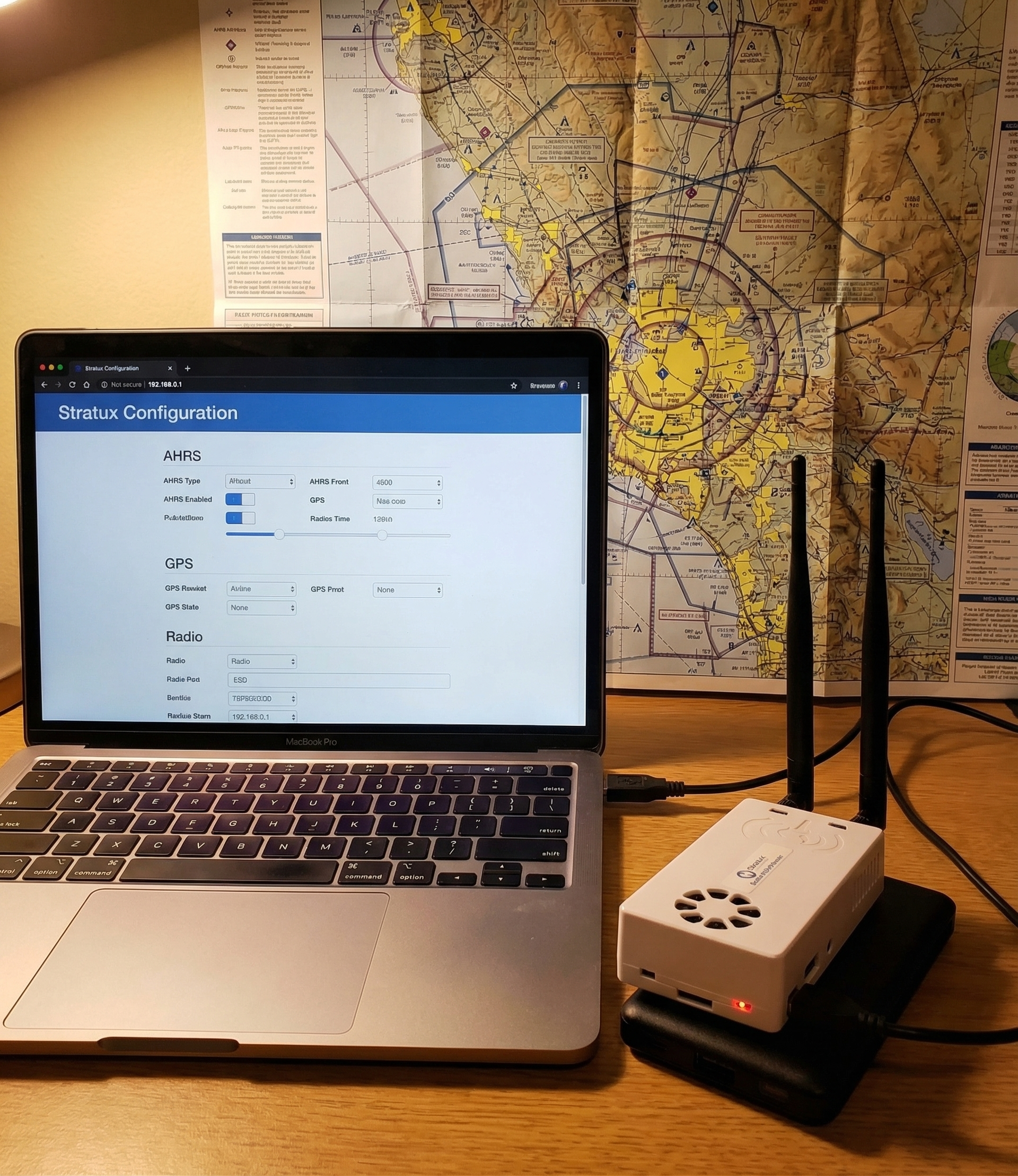
Updating Stratux firmware keeps your unit current with bug fixes, new features, and protocol improvements that affect how well it works with apps like ForeFlight and Garmin Pilot. The process is straightforward — you can do it entirely through the Stratux web interface without any command-line knowledge. Here’s how.
When to Update
Check for firmware updates:
- Before a long cross-country or trip where reliability matters
- When you notice a specific bug that might be addressed in a newer release
- After the community reports a significant update (check the Stratux GitHub releases page)
- About once every 6 months if nothing specific is driving an update
Don’t update firmware the night before a critical flight. Test it first — confirm everything still works before you depend on it. New firmware is generally stable, but confirming before you need it is good practice.
Method 1: Web Interface Update (Recommended)
This is the easiest method and works for most users.
Step 1: Connect to Stratux WiFi
Power on Stratux, wait 90 seconds, and connect your iPad or computer to the Stratux WiFi network (default: stratux / stratux1090). Stratux needs internet access for this method — see Step 2.
Step 2: Give Stratux Internet Access
The update requires Stratux to download the new firmware image. This means the Raspberry Pi needs internet access. Two options:
- Ethernet: If your Pi has an ethernet port (Pi 3B does), connect it to your home router with an ethernet cable. The Pi will use ethernet for internet while still broadcasting WiFi for you to access the web interface.
- WiFi bridge: Some Stratux builds support connecting the Pi’s WiFi to your home network as a client while also hosting the Stratux WiFi. This is more complex to configure — ethernet is easier.
Step 3: Access the Stratux Web Interface
Open a browser and navigate to 192.168.10.1. You’ll see the Stratux status dashboard. Look for the current firmware version displayed at the top of the page (something like “v1.6r2” or similar).
Step 4: Navigate to Update Settings
Click Settings in the navigation menu. Scroll to the “Software Update” section. You’ll see your current version and a button to check for updates. Click Check for Updates.
Step 5: Install the Update
If a newer version is available, you’ll see a prompt with the version number and release notes. Click Update to start the download and installation. The process takes 5–15 minutes depending on your internet speed and the size of the update.
Do not power off Stratux during the update. A power interruption mid-update can corrupt the microSD card and require a full reflash. Keep it plugged in and wait.
Step 6: Reboot and Verify
After the update completes, Stratux will prompt you to reboot or will reboot automatically. Wait 90 seconds for the fresh boot. Reconnect to Stratux WiFi, open 192.168.10.1, and confirm the version number has changed to the new release.
Method 2: Fresh Image Flash (Full Reinstall)
Use this method when:
- Web interface update fails or gets stuck
- Your microSD card appears corrupted (boot loops, software not starting)
- You want a completely clean install
- Upgrading to a major version that requires a fresh image
What You Need
- Computer (Mac, Windows, or Linux)
- microSD card reader
- New or reformatted microSD card (8GB minimum; 16GB or 32GB recommended; use Samsung or SanDisk)
- Balena Etcher (free, at etcher.balena.io) or Raspberry Pi Imager
Step 1: Download the Stratux Image
Go to the Stratux GitHub releases page. Download the latest .img.zip or .img.gz file for your Pi model. Note: some Pi models (Zero 2W, Pi 4) may use different image variants — check the release notes.
Step 2: Flash the Image
Open Balena Etcher. Select the downloaded image file, select your microSD card as the target, and click Flash. This takes 5–10 minutes and verifies the write when done.
Double-check your target drive. Etcher writes to whatever you select — make sure it’s the microSD card, not your laptop’s drive.
Step 3: Configure Before First Boot
Before inserting the freshly-flashed card into the Pi, you can pre-configure some settings by editing files on the microSD’s boot partition (which your computer can read):
- WiFi credentials: edit
stratux.confif needed - System configuration: most settings are configurable through the web interface after first boot
Step 4: Insert Card and Boot
Insert the microSD card into the Pi, power on, wait 90 seconds, connect to the Stratux WiFi, and verify at 192.168.10.1. On first boot after a fresh flash, some settings reset to defaults — reconfigure through the web interface as needed.
After Any Update: Verify These Settings
After an update (either method), check these settings haven’t reverted to defaults:
- WiFi SSID and password (if you changed from defaults)
- SDR gain settings
- GPS configuration
- AHRS calibration (may need to re-run after a fresh flash)
What’s in a Typical Stratux Update
Stratux firmware updates often include:
- GDL 90 protocol improvements (better compatibility with EFB apps)
- GPS driver updates (faster lock, better accuracy)
- AHRS improvements (reduced drift, better calibration)
- Bug fixes reported by the community
- New hardware support (newer Pi models, SDR chips)
Check the GitHub release notes for specifics on each version.
Troubleshooting Update Issues
Update stuck at a percentage
Wait 20 minutes before concluding it’s stuck — large downloads on slow connections take time. If genuinely stuck, power cycle (carefully) and fall back to Method 2 (fresh flash).
WiFi not coming back after update
The update may have reset WiFi configuration. Try default credentials (stratux / stratux1090). If those don’t work, fresh flash the card.
Stratux won’t boot after update
MicroSD card corruption — either the card was marginal before the update, or power was interrupted. Fresh flash to a new, quality microSD card.
For hardware-specific issues with Crew Dog Electronics units, contact us directly.