
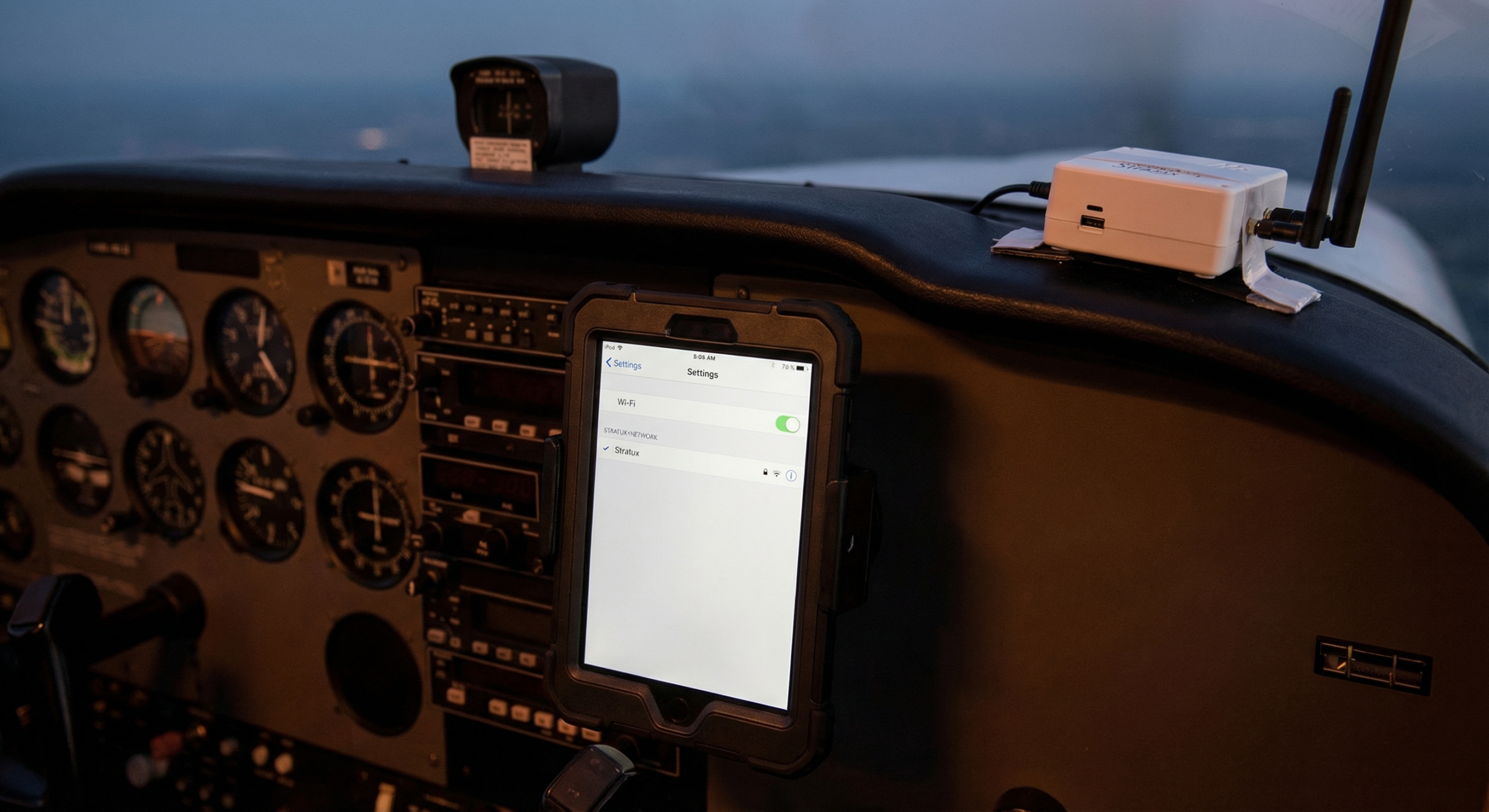
Stratux WiFi problems are the most common support question in the community. The good news: almost every WiFi issue has a straightforward fix. Work through these eight in order and you’ll almost certainly find the problem.
Before You Start: Confirm Stratux Is Booted
The most common “WiFi problem” is connecting before Stratux finishes booting. Stratux needs 60–90 seconds from power-on to fully initialize. If you try to connect at 15 seconds, the WiFi network may not be broadcasting yet — or it may appear but not be ready to assign an IP address.
Power on Stratux, wait a full 90 seconds, then scan for networks. If you were connecting too early, this alone fixes the problem.
Fix 1: Forget the Stratux Network and Reconnect
iOS and Android aggressively cache WiFi connection data. If you’ve connected to Stratux before and something changed (power cycle, firmware update, SSID change), the cached credentials can cause a silent connection failure.
On iOS: Settings → WiFi → tap the (i) next to the Stratux network → Forget This Network. Then reconnect with the current credentials (default: stratux / stratux1090).
On Android: Settings → Network → WiFi → long-press Stratux network → Forget. Then reconnect.
Fix 2: Check That Stratux WiFi Is Enabled
Stratux has a WiFi toggle in its configuration. If someone (or a botched firmware update) disabled WiFi, the network won’t broadcast. Connect via ethernet to the Pi (if you have ethernet access on your Pi model) and check:
Navigate to 192.168.10.1 → Settings → confirm WiFi is enabled. If you can’t reach the web interface via any means, continue to Fix 7.
Fix 3: Android WiFi “No Internet” Auto-Switch
Android detects that the Stratux WiFi has no internet access and may auto-switch back to your cellular data while still showing the Stratux network as “connected.” The app connects, but the data goes over cellular — there’s no Stratux device at 192.168.10.1 on cellular.
Fix: When connected to Stratux WiFi, Android will often show a prompt “This network has no internet access — stay connected?” Tap “Yes, stay connected.” Alternatively, go to WiFi settings, tap the Stratux network, and enable “Use this network even without internet.”
Fix 4: iOS WiFi Auto-Join and Cellular Switching
iOS has a similar behavior: if it determines the Stratux WiFi offers “limited connectivity,” it may prefer cellular over WiFi for apps. Check: Settings → WiFi → tap (i) next to Stratux → ensure Auto-Join is ON. Also check Settings → Cellular → Wifi Assist — consider disabling WiFi Assist, which lets iOS use cellular when WiFi is “weak.”
Fix 5: Wrong Password
Default Stratux credentials are SSID: stratux and password: stratux1090. If you changed these and forgot, or if someone else set up the unit with different credentials, you’ll see repeated authentication failures.
Recovery: access the Stratux configuration files directly via ethernet or by mounting the microSD card on a computer. The WiFi password is stored in /etc/wpa_supplicant/wpa_supplicant.conf on the Pi’s filesystem. Edit it, reboot, reconnect.
Fix 6: IP Address Conflict
Stratux runs its own DHCP server and assigns your device an IP in the 192.168.10.x range. If your iPad already has a static IP configured or something interfered with DHCP assignment, you’ll connect to the WiFi but not get a usable address.
Check: Settings → WiFi → tap (i) next to Stratux → look at the IP Address field. It should show something like 192.168.10.x. If it shows 169.254.x.x (link-local / self-assigned), DHCP failed. Fix: toggle WiFi off and back on to force a new DHCP request.
Fix 7: SDR Dongle Pulling Too Much Power (Pi Won’t Boot Fully)
Some SDR dongles draw more startup current than the Pi’s USB ports can supply, causing the Pi to restart in a boot loop. Symptoms: Stratux appears to power on (LEDs light), goes dark briefly, then lights again — repeating. The WiFi never fully comes up because the Pi never finishes booting.
Fix: Use a powered USB hub between the Pi and the SDR dongles, or use a power source rated for at least 3A (not 2A). Also check your USB cable — a poor-quality cable drops voltage under load and causes the same symptom.
Fix 8: Corrupted microSD Card
MicroSD cards eventually fail, and the failure mode is often a corrupted filesystem that boots partway but not completely. The WiFi interface comes up but the Stratux software doesn’t start properly.
Diagnosis: if Stratux broadcasts a WiFi network but 192.168.10.1 doesn’t load (connection refused or times out), the software likely isn’t running. Reflash the Stratux image to a new microSD card. The Stratux project GitHub has current image downloads and instructions. Use a quality card — Samsung or SanDisk — not the cheapest card you can find.
Still Stuck?
If you’ve worked through all eight fixes and Stratux WiFi still isn’t connecting, post in the Stratux community forums or on Reddit’s r/stratux with:
- Your hardware (Pi model, SDR model)
- Firmware version (shown on the web interface)
- What device you’re connecting from (iOS/Android version)
- What happens when you try to connect (exact error)
The community has seen most issues. Someone will recognize your problem.
If you have a Crew Dog Electronics Stratux unit, reach out directly — we can diagnose hardware-specific issues and, if needed, repair or replace components.