
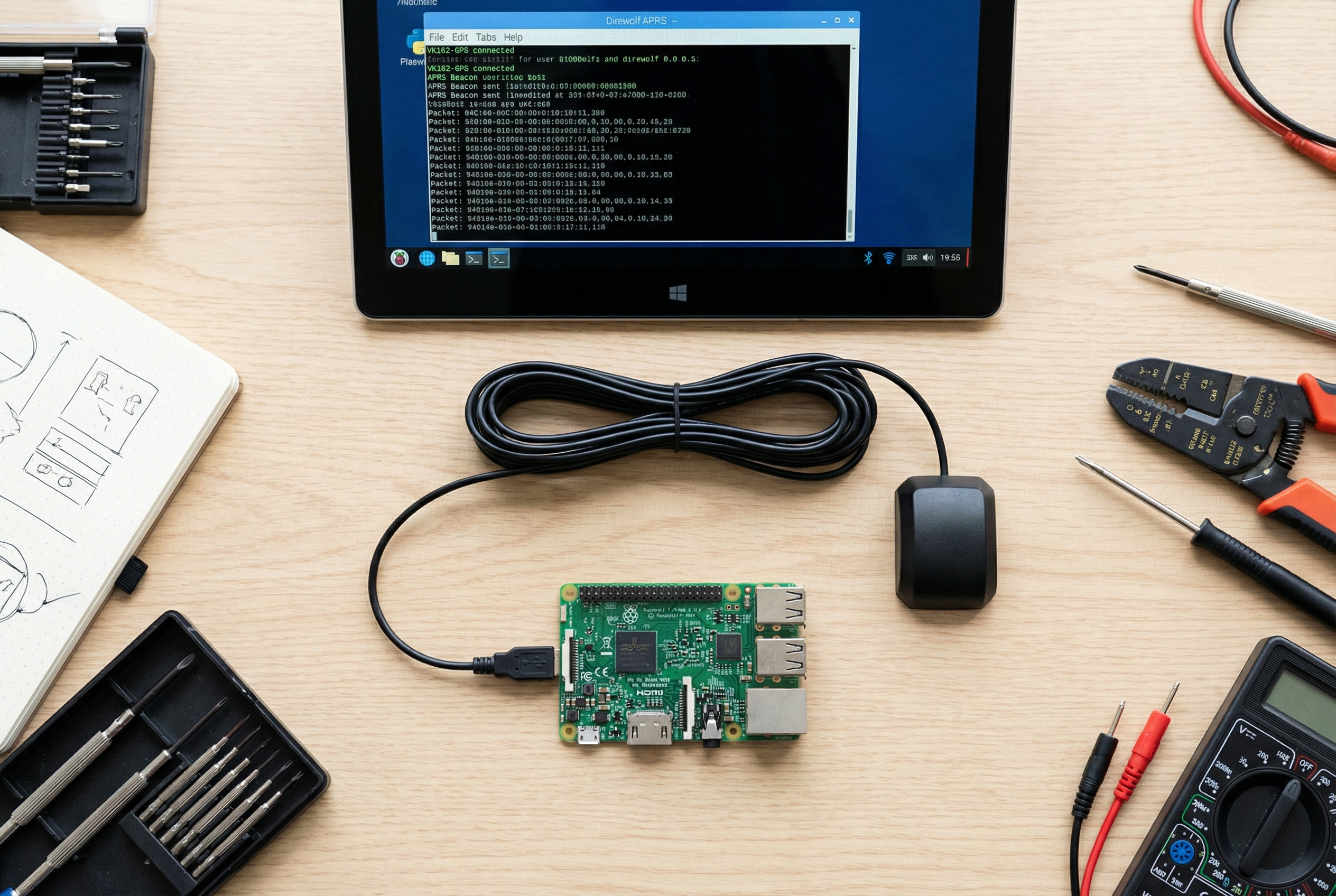
If you’re running APRS on a Raspberry Pi with Direwolf, you need a
reliable GPS source. The VK-162 USB GPS dongle is a solid choice —
plug-and-play on Linux, u-blox chipset, no driver installation required.
Here’s how to get it talking to gpsd and feeding position data to your
Direwolf setup.
This guide assumes you have:
- Raspberry Pi running Raspberry Pi OS (Bullseye or later)
- VK-162 USB GPS dongle
- Direwolf installed (for the APRS TNC layer)
- A radio interface (soundcard, Signalink, or hardware TNC) — out of scope here, but assumed
Step 1: Plug It In and
Find the Device
The VK-162 shows up as a USB serial device. Plug it into a USB port,
wait a few seconds, then check what appeared:
ls /dev/ttyACM* /dev/ttyUSB*On most Raspberry Pi setups with Raspberry Pi OS, the VK-162
registers as /dev/ttyACM0. If you have other USB serial
devices attached, it may be /dev/ttyACM1 or
/dev/ttyUSB0. The dmesg output right after
plugging in will confirm:
dmesg | tail -10Look for a line mentioning u-blox or
cdc_acm — that’s your GPS.
Step 2: Install gpsd
gpsd is the standard GPS daemon for Linux. It handles the raw NMEA
stream from the VK-162 and exposes it to multiple applications
simultaneously — Direwolf, cgps, YAAC, whatever you’re running.
sudo apt update && sudo apt install gpsd gpsd-clients -yTell gpsd where to find your GPS device. Edit
/etc/default/gpsd:
DEVICES="/dev/ttyACM0"
GPSD_OPTIONS="-n"
START_DAEMON="true"
USBAUTO="true"
The -n flag tells gpsd to start polling immediately on
startup, which matters for APRS — you don’t want to wait for a client to
connect before acquiring lock.
Start (or restart) the service:
sudo systemctl restart gpsd
sudo systemctl enable gpsd
Step 3: Verify GPS Lock
Before wiring Direwolf to gpsd, confirm the GPS is actually working.
cgps shows a live dashboard:
cgps -sOr for a more detailed view:
gpsmonOn first boot (cold start), GPS lock takes 1–3 minutes — longer if
the antenna hasn’t been outside recently. The VK-162’s built-in patch
antenna works fine for most situations; just make sure it has a clear
view of the sky. Through a window or in a basement will degrade
acquisition time significantly.
Once you see satellites and a position fix in cgps,
you’re ready for the next step.
Step 4: Configure
Direwolf to Use gpsd
Direwolf can pull position data from gpsd directly — no need to point
it at the serial device separately. In your
direwolf.conf:
GPSD localhost 2947This tells Direwolf to connect to the local gpsd socket on the
standard port (2947) and use whatever position gpsd is reporting. Simple
and clean — gpsd handles the hardware, Direwolf handles the packet
layer.
For basic APRS beaconing, you’ll also need your callsign and beacon
interval set in direwolf.conf. A minimal beaconing setup
looks like:
MYCALL N0CALL-9
...
PBEACON delay=1 every=30 symbol="/-" lat=XX^XX.XXN long=XXX^XX.XXW comment="Raspberry Pi APRS"
(Replace with your actual callsign and let gpsd supply the
coordinates dynamically — use the GPSD directive above
rather than hardcoding lat/long.)
Step 5: Check Your Packets
on aprs.fi
Once Direwolf is running and your radio interface is connected, your
beacons should start appearing on aprs.fi.
Search your callsign. If you’re seeing packets from the right position,
you’re done.
If not — work backwards:
- Is gpsd showing a valid fix? (
cgps -s) - Is Direwolf showing position data in its output? (run
direwolfin verbose mode) - Is your audio interface transmitting? (watch the PTT indicator in Direwolf)
Why the VK-162 Works Well
for APRS
A few things make the VK-162 a practical choice here:
u-blox chipset. The u-blox chip in the VK-162 has
solid cold-start acquisition time and reliable hot-start performance.
Generic GPS dongles with cheap SiRFstar or MediaTek chips are
hit-or-miss on Linux. u-blox just works.
NMEA 0183 output. Standard protocol, immediately
understood by gpsd without any configuration gymnastics. No proprietary
binary mode, no driver needed.
USB power only. No external power supply, no UART
wiring. Plug into the Pi, done. This matters for APRS trackers that live
in vehicles or go portable — every connector you eliminate is one less
failure point.
5-meter cable option. Some APRS installs need the
antenna near a window while the Pi sits elsewhere. The VK-162’s compact
antenna head can be extended with a standard USB extension cable, which
gives you flexibility without adding complexity.
What About the SSID?
For mobile APRS (vehicle tracker), SSID -9 is
conventional. For a fixed home station doubling as an iGate,
-10. Direwolf supports both simultaneously — you can run it
as a tracker, digipeater, and iGate from a single Pi. Beyond the scope
of this guide, but the VK-162 position input is the same regardless.
Parts You’ll Need
| Part | Notes |
|---|---|
| VK-162 USB GPS | The subject of this guide — u-blox chipset, plug-and-play |
| Raspberry Pi (any model 3+) | Pi 4 recommended; Pi Zero works but USB-A adapter required |
| Radio interface | Signalink USB is common; hardware TNC (Mobilinkd, TNC-Pi) also works |
| HT or mobile radio | Any radio with a standard 3.5mm/2.5mm audio jack |
| USB extension cable | Optional, for antenna placement flexibility |
Get the VK-162
Crew
Dog Electronics carries the VK-162 — same u-blox chipset, ships
fast, no cable management surprises.