
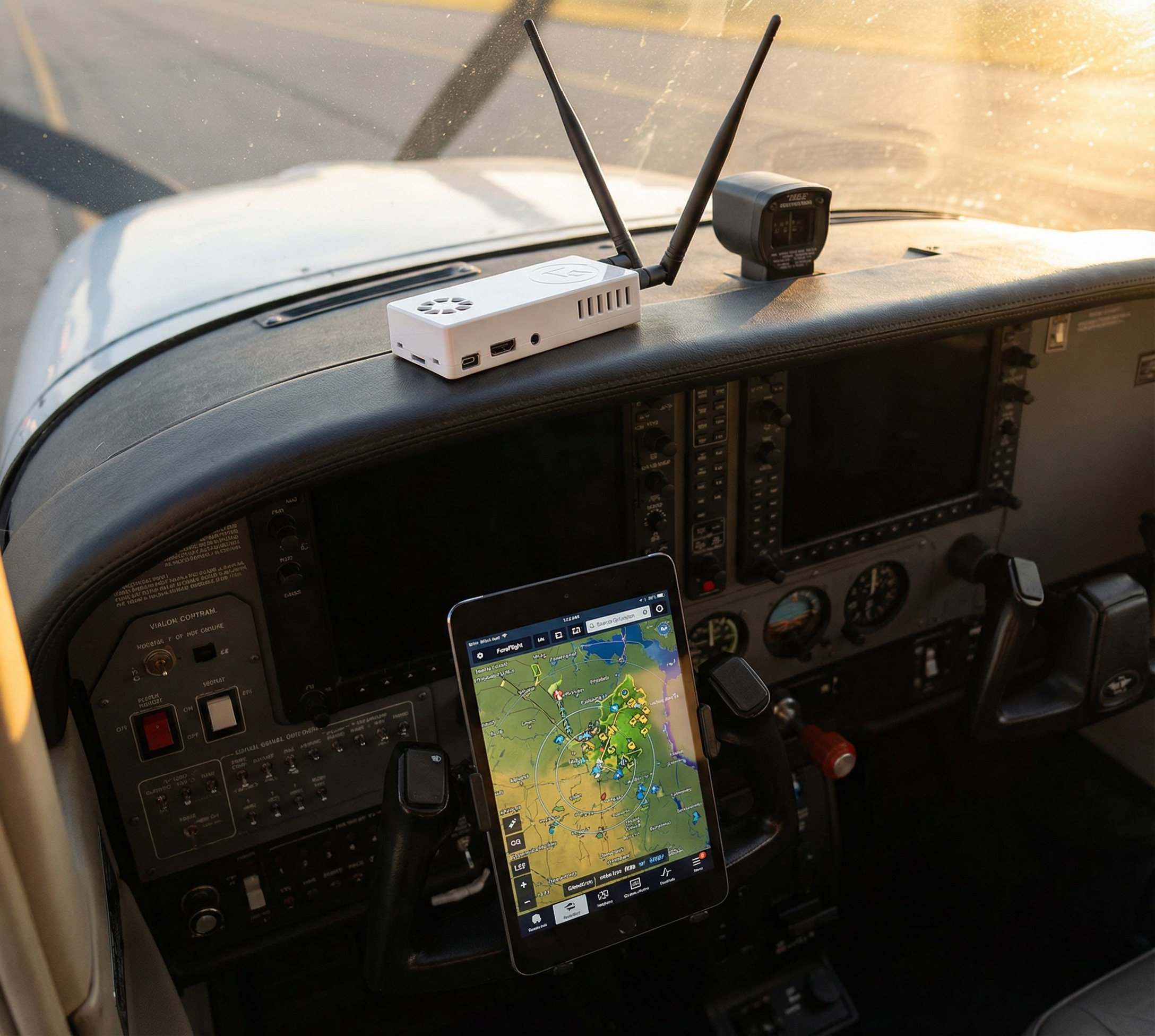
Title: How to Set Up Stratux ADS-B for the First Time (Step-by-Step)
You just unboxed your Stratux receiver. Or you’re about to buy one and want to know what you’re getting into.
Good news: setup takes about 5 minutes. No software to install. No account to create. No subscription to enter.
This guide walks you through the complete setup — from power-on to seeing traffic and weather in your EFB — in plain English.
What You’ll Need
Before you start, gather these:
- Your Stratux ADS-B receiver (pre-built or kit)
- A power source: USB port, USB power bank, or cigarette adapter
- A tablet or phone running your EFB app (ForeFlight®, Garmin Pilot, AvPlan, FlyQ, or any Wi-Fi-capable EFB)
- About 5 minutes
That’s it. No cables connecting the Stratux to your tablet. No Bluetooth pairing codes. It all goes over Wi-Fi.
Step 1: Power It On
Plug your Stratux into a USB power source. Any USB port or power bank works — Stratux draws about 1–2W at idle.
What to look for:
- The LED(s) will illuminate within 5–10 seconds of power
- Some builds have a power button; press and hold 2 seconds if the unit doesn’t start automatically
- GPS lock can take 1–3 minutes on first boot (cold start). Subsequent starts are faster.
Tip for the cockpit: A USB power bank gives you complete freedom from aircraft power. A 10,000 mAh bank runs Stratux for 15+ hours — more than any cross-country flight you’re planning.
Step 2: Connect to the Stratux Wi-Fi Network
Stratux broadcasts its own Wi-Fi hotspot. You join it from your tablet or phone — exactly like connecting to a coffee shop’s Wi-Fi.
On your tablet: 1. Open Settings → Wi-Fi 2. Look for a network starting with stratux (e.g., stratux-XXXX) 3. Tap to connect — no password by default 4. Stay connected. Don’t switch back to your home network.
Important: Your tablet will likely warn you that this Wi-Fi network “has no internet access.” That’s expected and correct. Stratux isn’t the internet. It’s a local aviation data feed. Dismiss the warning and stay connected.
Some Android devices will automatically switch to cellular when they detect no internet. If this happens, disable the “Switch to Mobile Data” option in your Wi-Fi settings, or enable Airplane Mode and then re-enable Wi-Fi.
Step 3: Open Your EFB and Enable Stratux
Every major EFB app supports Stratux out of the box. Here’s where to find the setting:
ForeFlight
- Open ForeFlight → More (bottom right)
- Tap Devices
- You should see Stratux appear automatically under “Connected Devices”
- If not: tap ADS-B at the top of the Devices screen and confirm Stratux is listed
Garmin Pilot
- Open Garmin Pilot → Settings (gear icon)
- Tap Connected Devices
- Stratux will appear under “Detected Devices”
AvPlan EFB
- Tap the Settings icon → External Devices
- Select Stratux / GDL90 compatible device
FlyQ / WingX / Other GDL90-compatible EFBs
Stratux transmits using the standard GDL90 protocol — the same protocol used by Garmin hardware. If your EFB supports GDL90 input (most do), Stratux will work. Look for “GDL90,” “ADS-B receiver,” or “external GPS device” in your app’s settings.
Step 4: Confirm It’s Working
Once connected, look for these indicators in your EFB:
✅ GPS position — your aircraft’s position on the map should update from Stratux (more accurate than your tablet’s internal GPS for most EFBs)
✅ Traffic — nearby ADS-B equipped aircraft will appear as targets on your traffic display. If you’re on the ground at a busy airport, you may see them immediately.
✅ Weather (FIS-B) — METAR, TAF, PIREP, SIGMET, and Winds Aloft data will populate after a short delay (FIS-B requires being within range of a ground station broadcasting weather — you may not have this on the ground in all areas)
✅ AHRS — if your Stratux includes the AHRS module, you’ll see attitude information (pitch/roll) populate in ForeFlight’s Attitude Indicator or compatible EFB displays
The status page: Stratux also has a built-in web interface. While connected to the Stratux Wi-Fi, open a browser and navigate to http://192.168.10.1 — you’ll see signal levels, GPS status, and traffic count in real time. This is useful for troubleshooting or just confirming everything is working.
Step 5: Mount It for Flight
Stratux doesn’t need to face any particular direction. That said:
- Keep it elevated if possible — window proximity improves GPS and ADS-B signal
- Avoid metal obstructions around the antennas (if external antennas are used)
- Suction cup mounts work well for GA aircraft; place on the glareshield or windshield corner
- Built-in antennas (on enclosed units) work best near a window
The 978 MHz UAT and 1090 MHz ES antennas are both omnidirectional — orientation doesn’t matter much. Just keep it out of direct sunlight in hot climates (heat kills electronics; a sleeve or shade helps on baking-hot tarmac days).
Troubleshooting — Common Issues
“I don’t see the Stratux Wi-Fi network” – Wait 60 seconds after power-on; the network takes a moment to broadcast – Confirm the unit is powered (check LEDs) – Move closer to the unit — Wi-Fi range is typically 30–50 feet
“ForeFlight/Garmin Pilot shows connected but I’m not seeing traffic” – Confirm you’re within ADS-B range of other equipped aircraft (traffic only appears if another aircraft is transmitting) – Check Stratux web interface (192.168.10.1) for signal levels; zero signal = antenna issue – Confirm you’re not accidentally on a different Wi-Fi network (check your tablet’s Wi-Fi settings)
“I see traffic but no weather” – FIS-B weather requires proximity to a ground station. On the ground in rural areas, you may not receive it. – In flight, FIS-B typically populates within 5–10 minutes above 3,000 AGL – FIS-B is 978 UAT only — if you’re in an area with only 1090 aircraft, you’ll still need UAT reception for weather
“My Android keeps disconnecting” – Android’s “smart network switching” will drop Wi-Fi connections that have no internet – Fix: Go to Settings → Wi-Fi → Stratux network → Advanced and disable “Auto switch to mobile network” or enable Airplane Mode + Wi-Fi
What You’re Receiving (Quick Primer)
Stratux receives two ADS-B frequencies simultaneously:
| Band | What it carries | Range |
|---|---|---|
| 978 MHz UAT | Traffic (UAT-equipped) + FIS-B weather | U.S. and Canada (CIFIB towers) |
| 1090 MHz ES | Traffic (Mode S transponders, airlines, mil) | Worldwide |
This dual-band reception is why Stratux shows you traffic that single-band receivers miss. A 978-only receiver can’t see airliners. A 1090-only receiver can’t receive FIS-B weather. Stratux sees both.
You’re Ready to Fly
That’s the complete setup. No ongoing configuration. No mandatory software to manage before every flight. No app subscriptions. You powered it on, connected via Wi-Fi, and your EFB is now receiving ADS-B traffic and weather — the same data feed used by panel-mounted avionics costing 5–10x more.
Questions? The Stratux community on Discord and GitHub has been troubleshooting setups since 2015. Whatever your question, someone’s had it and answered it.
Ready to Get One?
If you’re still comparing options: compare the Crew Dog pre-built Stratux — the same hardware this guide covers, ready to go out of the box with no assembly required.