
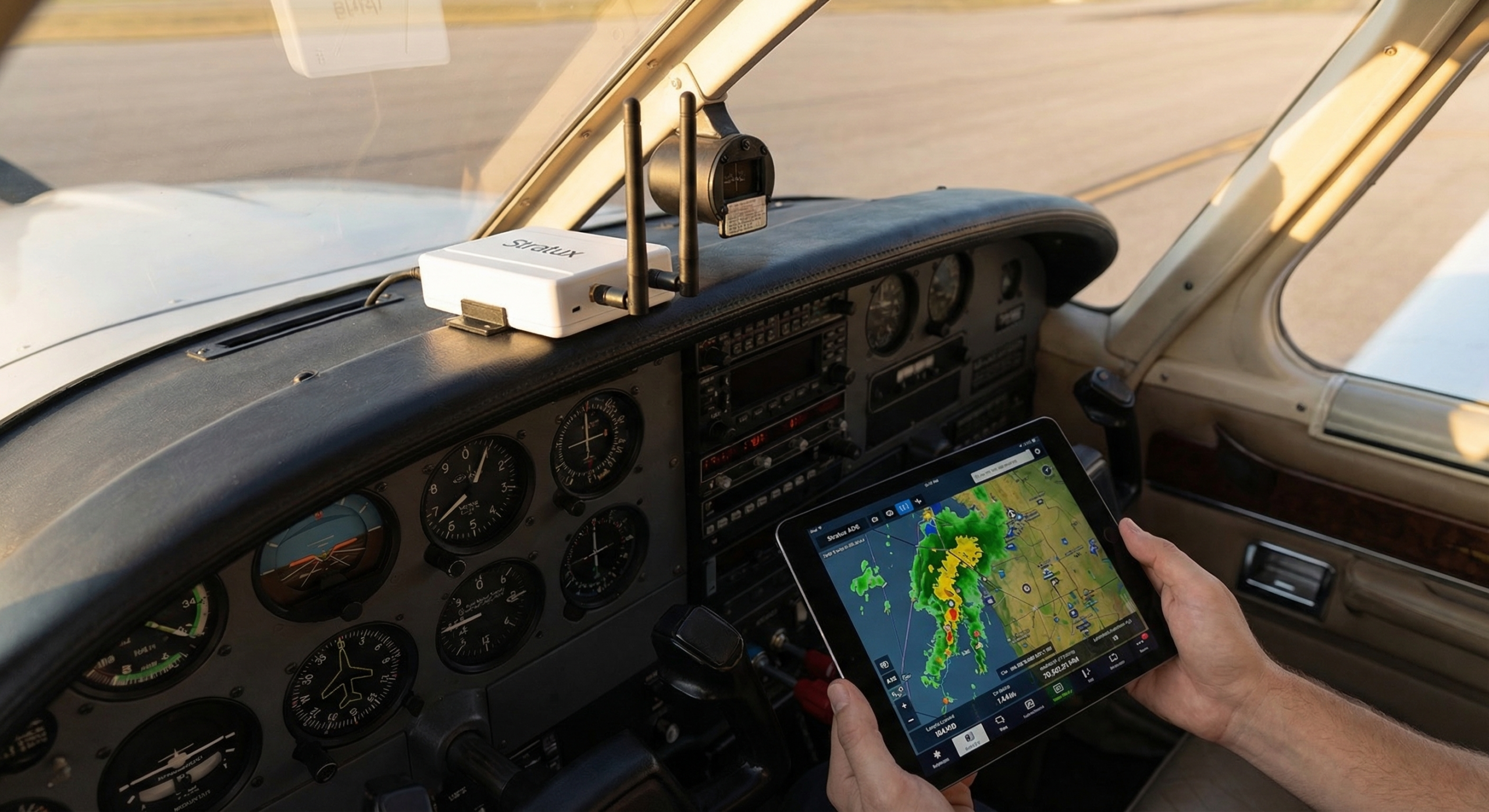
Stratux and WingX Pro7 work together out of the box. If you’re a WingX user who wants ADS-B traffic, free FIS-B weather, and AHRS synthetic vision without buying expensive commercial hardware, this is your setup guide. Five minutes and you’ll have full situational awareness on your iPad.
What You Get When Stratux Connects to WingX
- ADS-B traffic: Targets with altitude, direction, and threat alerts
- FIS-B weather: NEXRAD radar, METARs, TAFs, AIRMETs, SIGMETs, PIREPs, TFRs
- GPS position: Stratux’s onboard u-blox GPS, typically more accurate than iPad GPS
- AHRS attitude data: Pitch and roll for synthetic vision (if your Stratux has an IMU)
WingX Pro7 has supported Stratux via the GDL 90 protocol since at least 2015. The integration is stable and well-tested.
Equipment
- Stratux unit (dual-radio for 978 + 1090 MHz)
- iPad or iPhone with WingX Pro7 installed
- Power bank or aircraft USB power for Stratux
The Crew Dog Electronics Stratux receiver ships with both radios installed and tested — ready to connect to WingX on first boot.
Step 1: Power On Stratux
Connect your power source and boot Stratux. Wait a full 90 seconds. The system needs time to initialize the SDR radios, acquire GPS satellites, and start broadcasting. Connect too early and WingX will see a partially-initialized device.
Status LED behavior varies by build, but most show a solid or slow-blink pattern when ready. The surest check: connect to the Stratux WiFi and open 192.168.10.1 — if the dashboard shows GPS satellites and SDR status, you’re ready.
Step 2: Connect Your iPad to Stratux WiFi
Settings → WiFi → select the Stratux network:
- Default SSID: stratux
- Default password: stratux1090
Confirm connection with a browser: 192.168.10.1 should load the Stratux dashboard.
Step 3: WingX Detects Stratux Automatically
Open WingX Pro7. Navigate to Setup → External Devices. WingX should detect Stratux and show it as a connected device with data sources listed (GPS, Traffic, Weather, AHRS). If it doesn’t auto-detect:
- Make sure iPad Local Network access is enabled for WingX: iOS Settings → Privacy & Security → Local Network
- Force-quit WingX and reopen while on Stratux WiFi
- Confirm Stratux firmware is 1.4 or newer
Step 4: Verify Data Sources in WingX
Traffic Display
In WingX, open the Map view. ADS-B traffic targets appear as aircraft icons relative to your position. WingX shows altitude delta (traffic above/below you), direction of travel, and closure rate for nearby targets. Threat alerts trigger for traffic within configurable proximity thresholds.
Weather Overlay
Enable weather layers in the WingX map. NEXRAD appears as precipitation overlay — remember this updates every 5 minutes, not real-time. METARs display at airports as color-coded icons (green = VFR, blue = MVFR, red = IFR, magenta = LIFR). Tap any airport icon to see the raw METAR text.
GPS Source
WingX will use the Stratux GPS when connected. Check the GPS indicator in the status bar — it should show “External GPS” or equivalent. If it shows “Internal,” something is wrong with the connection.
Configuring Traffic Alerts in WingX
WingX’s traffic alert system is configurable. Navigate to Setup → Traffic Alerts to set:
- Horizontal alert distance: How close traffic needs to be before alerting (default ~3nm)
- Vertical alert separation: How much altitude differential before alerting (default ±1,200ft)
- Alert audio: Enable verbal traffic call-outs (“Traffic, 12 o’clock, 500 feet below, converging”)
For pattern work at a busy airport, tighten these thresholds. For cruise at altitude, the defaults are reasonable.
AHRS and Synthetic Vision in WingX
If your Stratux has an AHRS module, WingX can display synthetic vision. Go to Setup → Display and enable Synthetic Vision. On the attitude indicator view, terrain renders in 3D perspective with your aircraft’s actual pitch and roll applied.
WingX’s synthetic vision uses the same terrain database as its standard map. The rendering is smooth and updates with AHRS data at approximately 10Hz — responsive enough to feel natural during normal maneuvering.
Tips for WingX + Stratux Reliability
Keep iPad awake
Auto-lock causes WingX to drop the Stratux connection. Set Auto-Lock to Never during flight: iOS Settings → Display & Brightness → Auto-Lock → Never.
Disable cellular WiFi switching
iOS sometimes switches from Stratux WiFi to cellular when it determines the network “has no internet.” Disable this: Settings → WiFi → tap the (i) next to your cellular network → disable Auto-Join. This prevents iOS from abandoning Stratux WiFi mid-flight.
Position Stratux for GPS
Place the Stratux where its GPS has a clear view of the sky — near a window or on the glareshield. Tucked under the seat or in a bag on the floor significantly degrades GPS lock and satellite count.
Update firmware before flights
Stratux firmware updates occasionally include protocol improvements that benefit WingX compatibility. Check for updates at 192.168.10.1 before long trips.
Comparison to Commercial ADS-B Receivers
WingX supports the same commercial ADS-B receivers (Stratus, iLevil, DUAL XGPS170) that cost $500–$800. Stratux provides the same GDL 90 protocol data stream that WingX expects. The practical difference in WingX behavior between a Stratus 3 and a Stratux is minimal for traffic and weather. AHRS quality varies depending on the IMU installed in your Stratux build.
Ready to Fly
If you need a Stratux unit, the Crew Dog Electronics catalog has pre-built units that work with WingX out of the box. No assembly, no configuration — pair your iPad and fly.