
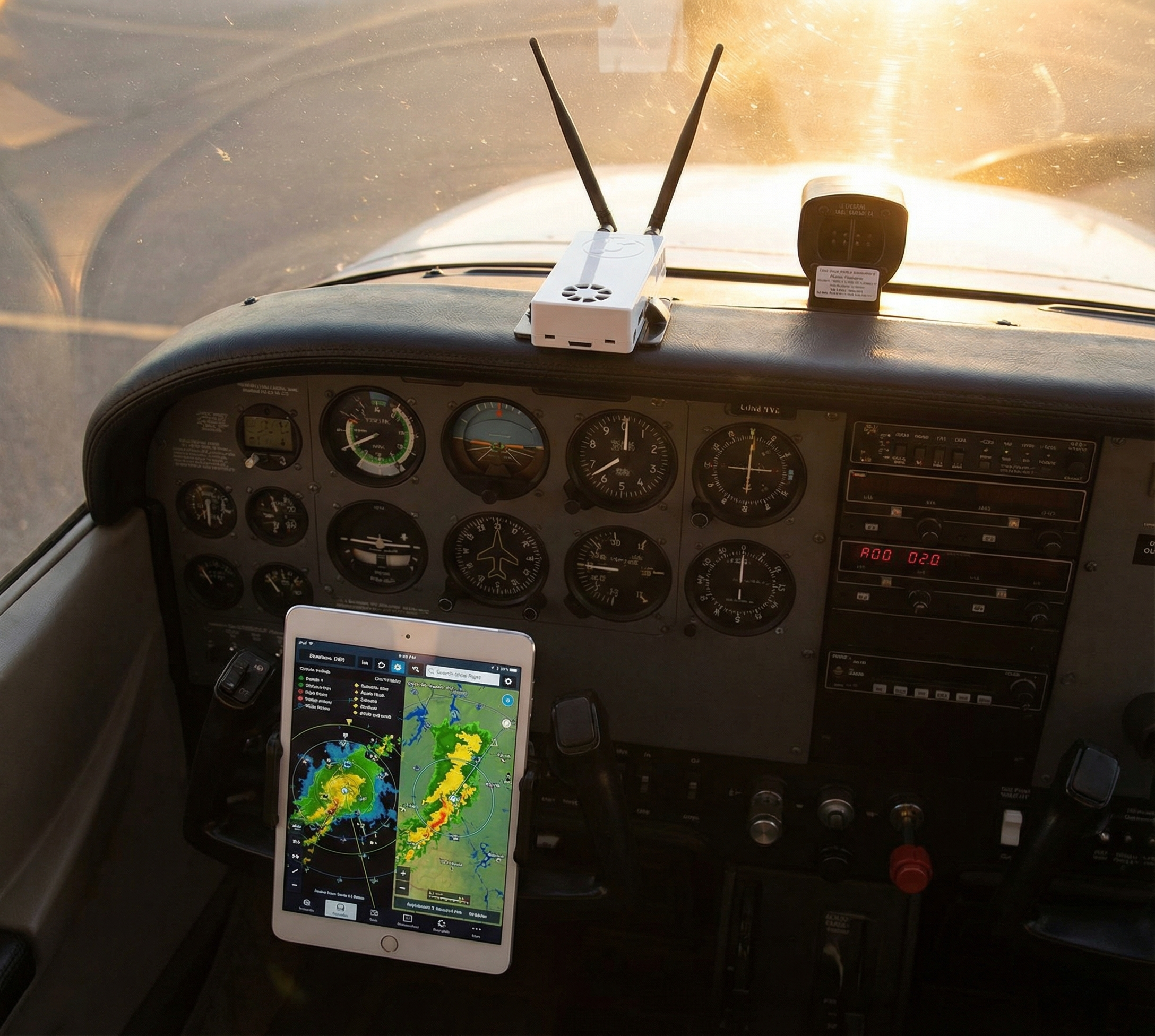
You’ve just unboxed your new Stratux ADS-B receiver, and you’re ready to see real-time traffic and weather on your iPad. Great choice! But if you’ve never connected an ADS-B receiver to ForeFlight before, the setup might seem intimidating.
Don’t worry—it’s easier than programming your GPS. In this guide, we’ll walk you through the entire process, from unboxing to your first flight with live traffic and FIS-B weather.
What You’ll Need
- Your Stratux receiver (charged or charging)
- iPad or iPhone with ForeFlight installed
- About 10 minutes
Note: This guide focuses on ForeFlight, but the process is nearly identical for FltPlan Go, iFly GPS, Avare, and other EFB apps. The Stratux WiFi network and settings interface work the same regardless of which app you use.
Step 1: Charge Your Stratux
Before your first use, charge the Stratux’s internal battery. Plug the included USB cable into any USB power source (wall adapter, computer, power bank) and connect it to the Stratux’s charging port.
Charging indicators:
- Red LED: Charging in progress
- Green LED: Fully charged
A full charge takes 2-3 hours and provides 4-6 hours of runtime, depending on configuration and temperature. You can also run the Stratux while charging if you have in-flight power available.
Step 2: Power On Your Stratux
Press and hold the power button for 2-3 seconds. You’ll see LEDs light up as the Raspberry Pi boots—this takes about 30-45 seconds.
What’s happening: The Stratux is starting its Linux-based operating system, initializing the GPS module, and firing up the SDR receivers for 1090ES and 978 UAT.
Be patient during the first boot—it may take slightly longer as the system initializes for the first time.
Step 3: Connect to the Stratux WiFi Network
Once the Stratux is fully booted (all LEDs stabilize), it broadcasts a WiFi network named “stratux” (or a custom name if you’ve renamed it).
On your iPad:
- Open Settings → WiFi
- Look for the network named stratux
- Tap it to connect
- If prompted for a password, the default is “stratux” (all lowercase)
You’ll see a checkmark next to “stratux” when connected. Your iPad may warn you that there’s no internet connection—that’s normal. The Stratux is a local network for ADS-B data, not an internet hotspot.
Pro Tip: Disable Auto-Join for Other Networks
To prevent your iPad from jumping to a different WiFi network mid-flight, go to Settings → WiFi, tap the (i) icon next to other networks (like your home WiFi), and disable Auto-Join. This ensures your iPad stays connected to the Stratux.
Step 4: Open ForeFlight and Enable ADS-B
Now that you’re connected to the Stratux WiFi, it’s time to configure ForeFlight.
- Open ForeFlight
- Tap More (bottom right) → Devices
- Under “ADS-B Receivers,” you should see Stratux listed
- Tap Stratux to select it
ForeFlight will now listen for data from the Stratux. You should see:
- GPS: Green indicator once the GPS has a fix (may take 1-2 minutes outdoors)
- AHRS: Green indicator (provides attitude data for synthetic vision)
- ADS-B Traffic: Will show traffic count once aircraft are detected
- Weather: Will populate with FIS-B data (requires ADS-B ground station in range)
Don’t panic if you don’t see traffic or weather immediately—you need to be outdoors with a clear view of the sky, and preferably in flight or at an airport with ADS-B coverage.
Step 5: Position Your Stratux for Best Reception
For optimal performance, position your Stratux with:
- Antennas pointing up toward the sky (not sideways or down)
- Clear view of the sky—avoid placing it under metal instrument panels or in baggage compartments
- Away from electronic interference—keep it away from other radios, iPads, and power supplies if possible
Ideal mounting locations:
- Glareshield (top of the panel, near the windscreen)
- Passenger seat with antennas up
- Window mount (suction cup or Velcro)
The better the antenna position, the more traffic you’ll see and the faster your GPS will lock.
Step 6: Check the Stratux Web Interface
The Stratux has a built-in web interface for monitoring status and adjusting settings. This is optional but incredibly useful.
To access it:
- Make sure you’re connected to the Stratux WiFi
- Open Safari (or any browser) on your iPad
- Go to: http://192.168.10.1
You’ll see the Stratux status page with real-time info:
- GPS status: Satellite count, position accuracy
- ADS-B traffic: Number of aircraft being tracked
- Weather (FIS-B): Data products being received
- Uptime and system info
This is your diagnostic dashboard. If something isn’t working, check here first.
Step 7: Go Fly!
You’re all set. Take your iPad and Stratux to the airport, power everything on, connect to the Stratux WiFi, and launch ForeFlight.
In flight, you’ll see:
- Traffic icons on the map showing nearby aircraft with altitude, direction, and vertical trend
- FIS-B weather overlays (NEXRAD, METARs, TAFs, winds aloft, etc.)
- GPS-derived position and AHRS-derived attitude for synthetic vision
Your first time seeing live traffic pop up on the map is a game-changer. You’ll wonder how you ever flew without it.
Tips for Best Performance
1. Let the GPS Warm Up
GPS can take 1-2 minutes (or longer) to acquire a fix on the first power-on, especially indoors or under a hangar roof. Be patient. Once it locks, subsequent startups are much faster.
2. Update Firmware Regularly
The Stratux community releases firmware updates with bug fixes and new features. Check GitHub or the Stratux web interface for updates. Updating is as simple as uploading a new image file via the web interface.
3. Keep Antennas Vertical
ADS-B signals are polarized. Keeping your antennas vertical maximizes reception. If you’re consistently missing traffic, check your antenna orientation first.
4. Monitor Battery Life
Check the Stratux web interface or ForeFlight’s Devices page to monitor battery percentage. If you’re on a long cross-country, bring a USB power bank or plug into ship power.
Troubleshooting Common Issues
WiFi Network Not Appearing
- Solution: Make sure the Stratux is fully booted (wait 45-60 seconds after powering on). If the network still doesn’t appear, the SD card may need reflashing. Download the latest Stratux image from GitHub and reflash using a tool like Balena Etcher.
No GPS Fix
- Solution: Move outdoors with a clear view of the sky. GPS doesn’t work well indoors or under metal roofs. If it still won’t lock after 5 minutes outside, the GPS module may be loose or faulty. Check connections or contact Crew Dog Electronics for a replacement module.
No Traffic Showing
- Solution:
- Check the Stratux web interface to confirm the SDR receivers are active
- Make sure you’re in an area with ADS-B Out-equipped aircraft (towered airports are best for testing)
- Verify antenna connections—loose antennas = no reception
- Check antenna orientation (should point up)
No Weather (FIS-B)
- Solution: FIS-B is broadcast by ADS-B ground stations on 978 UAT. You need to be within range of a ground station (typically within 200nm of major airports at altitude). If you’re in a remote area or flying low, you may not receive FIS-B. This is normal—it’s not a Stratux issue.
ForeFlight Not Detecting Stratux
- Solution:
- Confirm you’re connected to the Stratux WiFi (not cellular or another network)
- Close and reopen ForeFlight
- Go to More → Devices and manually select Stratux
- If still not working, restart both the iPad and the Stratux
Maintenance and Care
Your Stratux is designed to be durable, but a little care goes a long way:
- Keep it cool: Don’t leave it in a hot cockpit for extended periods. Heat degrades battery life.
- Protect from moisture: The Stratux isn’t waterproof. Keep it dry.
- Update firmware: Check for updates every few months.
- Replace parts as needed: If something fails, replacement parts are available. Don’t throw away the whole unit for a $20 component.
Final Thoughts
Setting up your Stratux with ForeFlight is straightforward: charge it, connect to the WiFi, enable it in ForeFlight, and fly. Within minutes, you’ll have live traffic and weather at your fingertips—no subscription required.
The first time you see a jet pass overhead and watch it move across your ForeFlight screen in real time, you’ll understand why ADS-B In is one of the best safety upgrades in modern GA flying.
Questions? Need help? Check out the Stratux GitHub for community support, or reach out to Crew Dog Electronics—we’re pilots too, and we’re here to help.
Fly safe, and enjoy your new eyes in the sky.