Posted on Leave a comment

5 Unexpected Uses for a VK-162 USB GPS Module (It’s Not Just for Navigation)

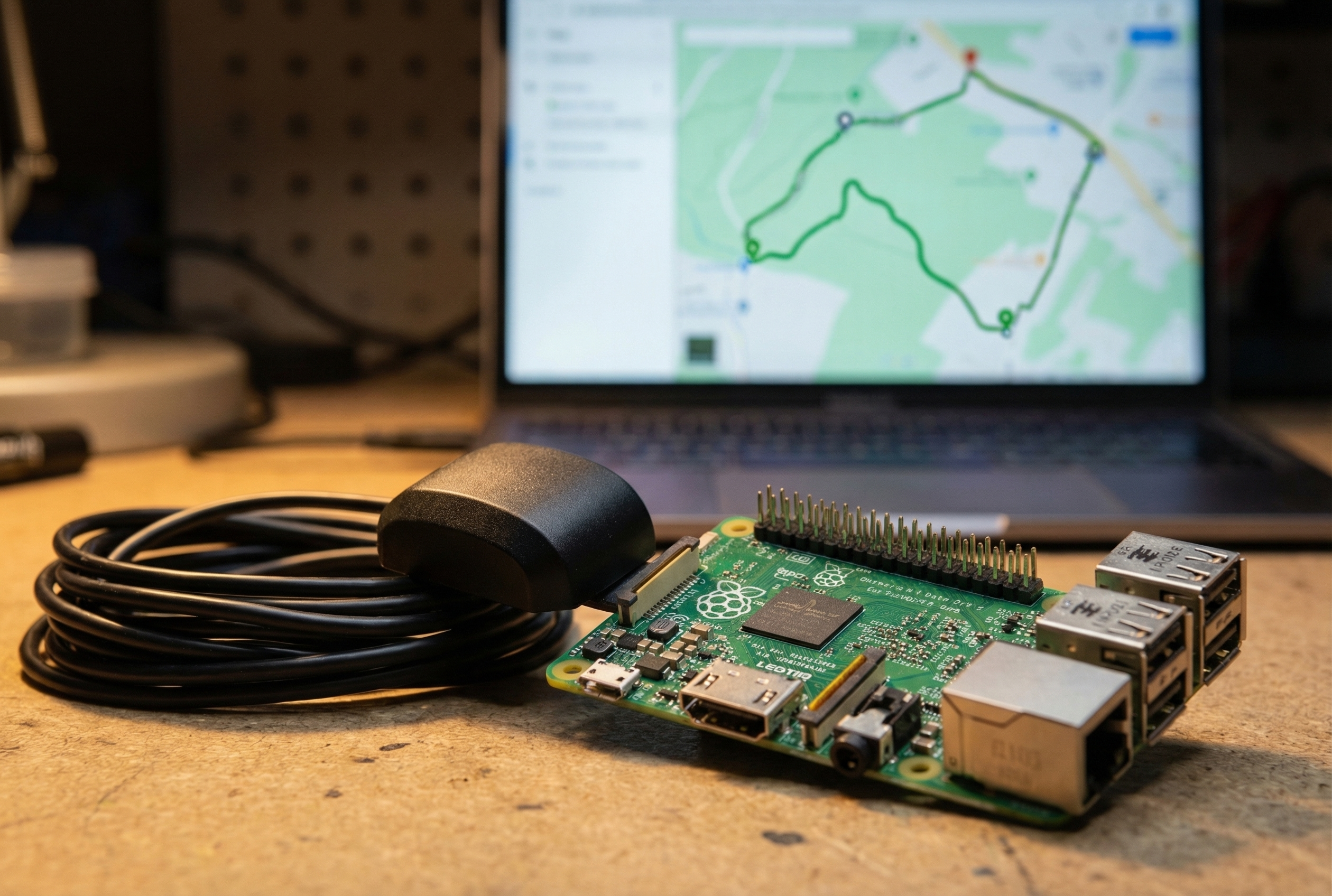
The VK-162 is a $15 USB GPS dongle that runs on a u-blox chip and works plug-and-play on Linux with zero driver installation. Most people pick one up because they need a cheap GPS source for a Raspberry Pi project and this one keeps showing up in forums as “the one that actually works.”

They’re not wrong. But most people use maybe 20% of what this thing can do. Here are five projects worth building.


1. Stratum 1 NTP Server (GPS-Disciplined Time for Your Network)

The most underrated use for a USB GPS receiver: feed its 1PPS signal to your network as a reference clock.

A Stratum 1 NTP server gets its time from an atomic source (GPS satellites carry atomic clocks). The VK-162 receives that time and passes it through gpsd, which chrony then uses to discipline your system clock. The result: sub-millisecond accuracy, completely offline, zero subscription cost, for as long as it has GPS lock.

This is genuinely useful if you run a home lab with VMs, containers, or network gear where time drift causes certificate errors, log confusion, or auth failures. It’s also useful for anyone who just enjoys not relying on pool.ntp.org.

What you need: VK-162 + any Raspberry Pi (even a Pi Zero W) + about 30 minutes.

👉 Full guide: How to Build a Stratum 1 NTP Server with a Raspberry Pi and VK-162


2. APRS Tracker or iGate (Ham Radio Position Beaconing)

If you have a ham license and a radio interface, a VK-162 + Raspberry Pi + Direwolf is everything you need to build a working APRS tracker or receive-only iGate.

The setup is clean: gpsd reads position data from the VK-162, Direwolf pulls location from gpsd with a single config line (GPSD localhost 2947), and your position packets go out over RF. You can run this mobile in a vehicle, fixed as a home iGate, or portable in a backpack with a battery.

The u-blox chip in the VK-162 behaves reliably on Linux — no polling jitter, consistent NMEA output, no fights with ttyUSB0 vs ttyACM0. That matters when Direwolf needs steady position updates.

What you need: VK-162 + Pi + radio interface (Signalink USB or similar) + amateur license.

👉 Full guide: How to Use a VK-162 USB GPS for Ham Radio APRS on Raspberry Pi


3. Vehicle GPS Logger and Dashcam Enrichment

No cloud. No subscription. No “we updated our privacy policy.”

The VK-162 logs raw NMEA sentences over USB. A simple Python script reads from gpsd’s socket and writes a GPX file — latitude, longitude, altitude, speed, and timestamp — every second. Combine that with dashcam footage and you have a fully geocoded drive record you can replay in Google Earth, Gaia GPS, or any GPX viewer.

This is useful for road trips, route documentation, fleet operators who want local logging, and anyone running Raspberry Pi-based dashcams who wants to tag footage without a cellular data plan.

The script is short — under 50 lines of Python using the gpsd-py3 library. Cold-start time is typically 30–60 seconds outdoors; mount the dongle near a window for best results.

What you need: VK-162 + Pi (any model) + Python 3 + gpsd-py3 + a small USB drive or SD card for log storage.


4. Offline Field Navigation (Hiking, Overlanding, Off-Grid)

A Pi running offline maps + a VK-162 = a GPS navigator that works without cell service, without Google, and without a $400 dedicated unit.

Software options: Navit (open source, actively maintained, works on Pi), OsmAnd (Android-focused but Pi builds exist), or a simple terminal readout via cgps -s if you just need coordinates. OpenStreetMap tiles work offline once downloaded; Navit will route you without internet.

This setup is popular with backcountry hikers, overlanders, ham radio operators doing field day from remote sites, and preppers who want a navigation system that doesn’t depend on any external service.

Cold-start lock takes 30–90 seconds on first use. After that, hot starts are typically under 10 seconds. Keep the dongle in a clear sky view — inside a vehicle on the dash, or attached to a pack’s shoulder strap.

What you need: VK-162 + Pi + Navit or similar + offline map tiles for your region.


5. Astrophotography and Telescope Alignment

This one surprises people.

Telescope alignment and astrophotography software needs two things: precise time and precise location. The VK-162 provides both, pulled from GPS satellites. Hook it up to gpsd, and software like KStars/Ekos, Stellarium, or AstroTortilla can pull accurate coordinates and UTC time automatically.

In practice, this means faster meridian flip calculations, better plate-solving results, and cleaner autoguide calibration — all because your clock drift is essentially zero and your lat/lon is GPS-accurate rather than typed in from memory.

Some astrophotographers run this on a Pi mounted directly to their telescope rig. Others use it as a time/location source for a dedicated astro PC. Either way, $15 for GPS-disciplined time and coordinates is a legitimate value-add for a setup that might have $1,000+ in other gear.

What you need: VK-162 + Pi or any Linux machine near your scope + KStars/Stellarium/AstroTortilla.


Parts You’ll Need

Item Notes
VK-162 USB GPS Dongle u-blox chip, plug-and-play Linux driver
Raspberry Pi (any model) Pi Zero W works for NTP/logging; Pi 4 for heavier tasks
MicroSD card (16GB+) For Pi OS
USB cable / hub If Pi has limited USB ports

👉 VK-162 and GPS components on Amazon →


One Module, Five Projects

The VK-162 isn’t a specialty part — it’s a general-purpose GPS input that happens to work reliably on Linux. Whether you’re building a home lab time server, an APRS tracker, a vehicle logger, a field navigator, or a scope alignment tool, the hardware is the same $15 dongle.

The limiting factor isn’t the hardware. It’s knowing the use cases exist.

Now you do.


Questions? Drop them in the comments. If you build something with this guide, we’d genuinely like to see it.

Posted on Leave a comment

How to Use a VK-162 USB GPS for Ham Radio APRS on Raspberry Pi

If you’re running APRS on a Raspberry Pi with Direwolf, you need a
reliable GPS source. The VK-162 USB GPS dongle is a solid choice —
plug-and-play on Linux, u-blox chipset, no driver installation required.
Here’s how to get it talking to gpsd and feeding position data to your
Direwolf setup.

This guide assumes you have:

  • Raspberry Pi running Raspberry Pi OS (Bullseye or later)
  • VK-162 USB GPS dongle
  • Direwolf installed (for the APRS TNC layer)
  • A radio interface (soundcard, Signalink, or hardware TNC) — out of scope here, but assumed

Step 1: Plug It In and
Find the Device

The VK-162 shows up as a USB serial device. Plug it into a USB port,
wait a few seconds, then check what appeared:

ls /dev/ttyACM* /dev/ttyUSB*

On most Raspberry Pi setups with Raspberry Pi OS, the VK-162
registers as /dev/ttyACM0. If you have other USB serial
devices attached, it may be /dev/ttyACM1 or
/dev/ttyUSB0. The dmesg output right after
plugging in will confirm:

dmesg | tail -10

Look for a line mentioning u-blox or
cdc_acm — that’s your GPS.


Step 2: Install gpsd

gpsd is the standard GPS daemon for Linux. It handles the raw NMEA
stream from the VK-162 and exposes it to multiple applications
simultaneously — Direwolf, cgps, YAAC, whatever you’re running.

sudo apt update && sudo apt install gpsd gpsd-clients -y

Tell gpsd where to find your GPS device. Edit
/etc/default/gpsd:

DEVICES="/dev/ttyACM0"
GPSD_OPTIONS="-n"
START_DAEMON="true"
USBAUTO="true"

The -n flag tells gpsd to start polling immediately on
startup, which matters for APRS — you don’t want to wait for a client to
connect before acquiring lock.

Start (or restart) the service:

sudo systemctl restart gpsd
sudo systemctl enable gpsd

Step 3: Verify GPS Lock

Before wiring Direwolf to gpsd, confirm the GPS is actually working.
cgps shows a live dashboard:

cgps -s

Or for a more detailed view:

gpsmon

On first boot (cold start), GPS lock takes 1–3 minutes — longer if
the antenna hasn’t been outside recently. The VK-162’s built-in patch
antenna works fine for most situations; just make sure it has a clear
view of the sky. Through a window or in a basement will degrade
acquisition time significantly.

Once you see satellites and a position fix in cgps,
you’re ready for the next step.


Step 4: Configure
Direwolf to Use gpsd

Direwolf can pull position data from gpsd directly — no need to point
it at the serial device separately. In your
direwolf.conf:

GPSD localhost 2947

This tells Direwolf to connect to the local gpsd socket on the
standard port (2947) and use whatever position gpsd is reporting. Simple
and clean — gpsd handles the hardware, Direwolf handles the packet
layer.

For basic APRS beaconing, you’ll also need your callsign and beacon
interval set in direwolf.conf. A minimal beaconing setup
looks like:

MYCALL N0CALL-9
...
PBEACON delay=1 every=30 symbol="/-" lat=XX^XX.XXN long=XXX^XX.XXW comment="Raspberry Pi APRS"

(Replace with your actual callsign and let gpsd supply the
coordinates dynamically — use the GPSD directive above
rather than hardcoding lat/long.)


Step 5: Check Your Packets
on aprs.fi

Once Direwolf is running and your radio interface is connected, your
beacons should start appearing on aprs.fi.
Search your callsign. If you’re seeing packets from the right position,
you’re done.

If not — work backwards:

  1. Is gpsd showing a valid fix? (cgps -s)
  2. Is Direwolf showing position data in its output? (run direwolf in verbose mode)
  3. Is your audio interface transmitting? (watch the PTT indicator in Direwolf)

Why the VK-162 Works Well
for APRS

A few things make the VK-162 a practical choice here:

u-blox chipset. The u-blox chip in the VK-162 has
solid cold-start acquisition time and reliable hot-start performance.
Generic GPS dongles with cheap SiRFstar or MediaTek chips are
hit-or-miss on Linux. u-blox just works.

NMEA 0183 output. Standard protocol, immediately
understood by gpsd without any configuration gymnastics. No proprietary
binary mode, no driver needed.

USB power only. No external power supply, no UART
wiring. Plug into the Pi, done. This matters for APRS trackers that live
in vehicles or go portable — every connector you eliminate is one less
failure point.

5-meter cable option. Some APRS installs need the
antenna near a window while the Pi sits elsewhere. The VK-162’s compact
antenna head can be extended with a standard USB extension cable, which
gives you flexibility without adding complexity.


What About the SSID?

For mobile APRS (vehicle tracker), SSID -9 is
conventional. For a fixed home station doubling as an iGate,
-10. Direwolf supports both simultaneously — you can run it
as a tracker, digipeater, and iGate from a single Pi. Beyond the scope
of this guide, but the VK-162 position input is the same regardless.


Parts You’ll Need

Part Notes
VK-162 USB GPS The subject of this guide — u-blox chipset, plug-and-play
Raspberry Pi (any model 3+) Pi 4 recommended; Pi Zero works but USB-A adapter required
Radio interface Signalink USB is common; hardware TNC (Mobilinkd, TNC-Pi) also
works
HT or mobile radio Any radio with a standard 3.5mm/2.5mm audio jack
USB extension cable Optional, for antenna placement flexibility

Get the VK-162

Crew
Dog Electronics carries the VK-162
— same u-blox chipset, ships
fast, no cable management surprises.

Posted on Leave a comment

How to Set Up Stratux ADS-B for the First Time (Step-by-Step)

Title: How to Set Up Stratux ADS-B for the First Time (Step-by-Step)


You just unboxed your Stratux receiver. Or you’re about to buy one and want to know what you’re getting into.

Good news: setup takes about 5 minutes. No software to install. No account to create. No subscription to enter.

This guide walks you through the complete setup — from power-on to seeing traffic and weather in your EFB — in plain English.


What You’ll Need

Before you start, gather these:

  • Your Stratux ADS-B receiver (pre-built or kit)
  • A power source: USB port, USB power bank, or cigarette adapter
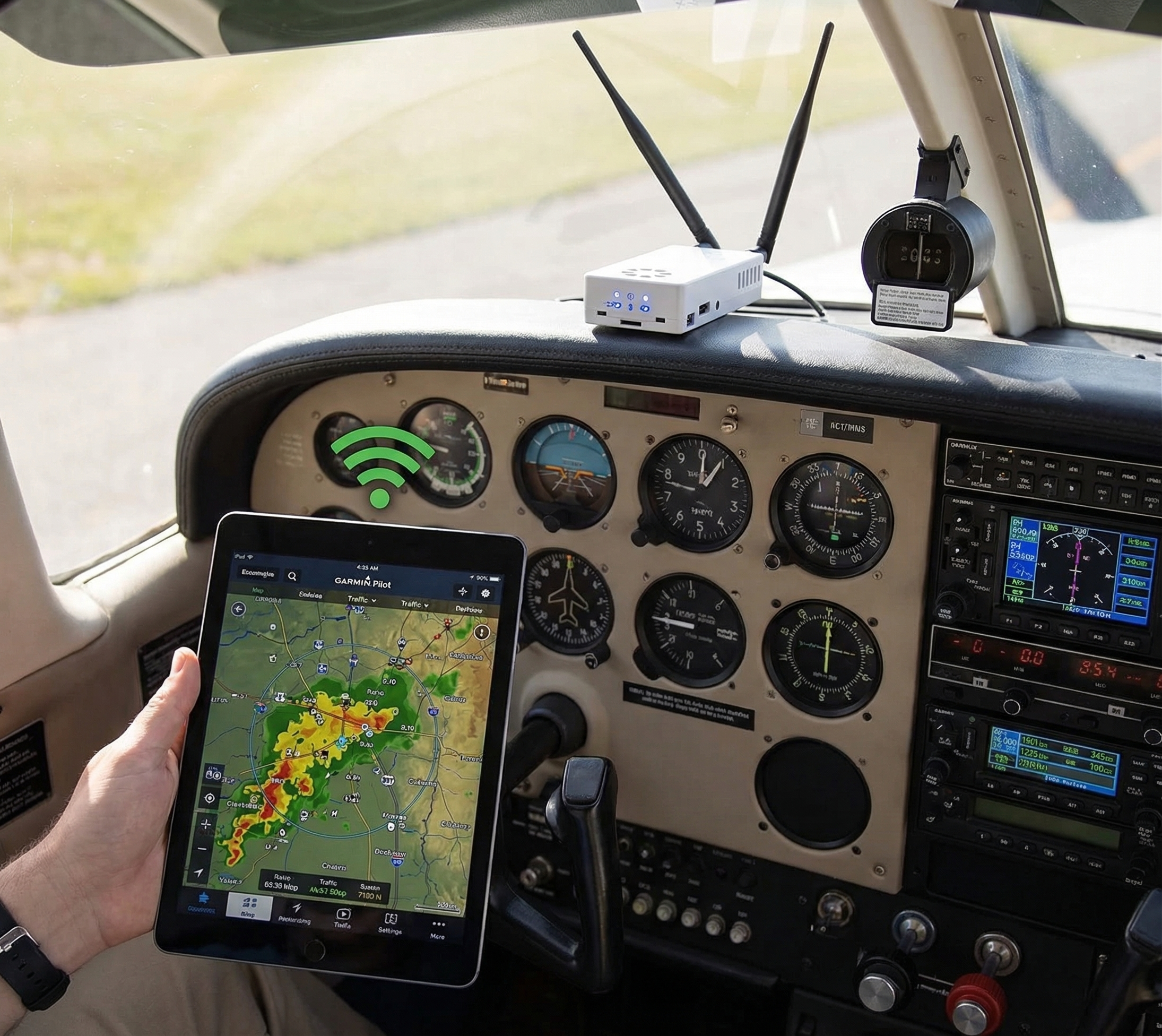
  • A tablet or phone running your EFB app (ForeFlight®, Garmin Pilot, AvPlan, FlyQ, or any Wi-Fi-capable EFB)
  • About 5 minutes

That’s it. No cables connecting the Stratux to your tablet. No Bluetooth pairing codes. It all goes over Wi-Fi.


Step 1: Power It On

Plug your Stratux into a USB power source. Any USB port or power bank works — Stratux draws about 1–2W at idle.

What to look for:

  • The LED(s) will illuminate within 5–10 seconds of power
  • Some builds have a power button; press and hold 2 seconds if the unit doesn’t start automatically
  • GPS lock can take 1–3 minutes on first boot (cold start). Subsequent starts are faster.

Tip for the cockpit: A USB power bank gives you complete freedom from aircraft power. A 10,000 mAh bank runs Stratux for 15+ hours — more than any cross-country flight you’re planning.


Step 2: Connect to the Stratux Wi-Fi Network

Stratux broadcasts its own Wi-Fi hotspot. You join it from your tablet or phone — exactly like connecting to a coffee shop’s Wi-Fi.

On your tablet: 1. Open Settings → Wi-Fi 2. Look for a network starting with stratux (e.g., stratux-XXXX) 3. Tap to connect — no password by default 4. Stay connected. Don’t switch back to your home network.

Important: Your tablet will likely warn you that this Wi-Fi network “has no internet access.” That’s expected and correct. Stratux isn’t the internet. It’s a local aviation data feed. Dismiss the warning and stay connected.

Some Android devices will automatically switch to cellular when they detect no internet. If this happens, disable the “Switch to Mobile Data” option in your Wi-Fi settings, or enable Airplane Mode and then re-enable Wi-Fi.


Step 3: Open Your EFB and Enable Stratux

Every major EFB app supports Stratux out of the box. Here’s where to find the setting:

ForeFlight

  1. Open ForeFlight → More (bottom right)
  2. Tap Devices
  3. You should see Stratux appear automatically under “Connected Devices”
  4. If not: tap ADS-B at the top of the Devices screen and confirm Stratux is listed

Garmin Pilot

  1. Open Garmin Pilot → Settings (gear icon)
  2. Tap Connected Devices
  3. Stratux will appear under “Detected Devices”

AvPlan EFB

  1. Tap the Settings icon → External Devices
  2. Select Stratux / GDL90 compatible device

FlyQ / WingX / Other GDL90-compatible EFBs

Stratux transmits using the standard GDL90 protocol — the same protocol used by Garmin hardware. If your EFB supports GDL90 input (most do), Stratux will work. Look for “GDL90,” “ADS-B receiver,” or “external GPS device” in your app’s settings.


Step 4: Confirm It’s Working

Once connected, look for these indicators in your EFB:

GPS position — your aircraft’s position on the map should update from Stratux (more accurate than your tablet’s internal GPS for most EFBs)

Traffic — nearby ADS-B equipped aircraft will appear as targets on your traffic display. If you’re on the ground at a busy airport, you may see them immediately.

Weather (FIS-B) — METAR, TAF, PIREP, SIGMET, and Winds Aloft data will populate after a short delay (FIS-B requires being within range of a ground station broadcasting weather — you may not have this on the ground in all areas)

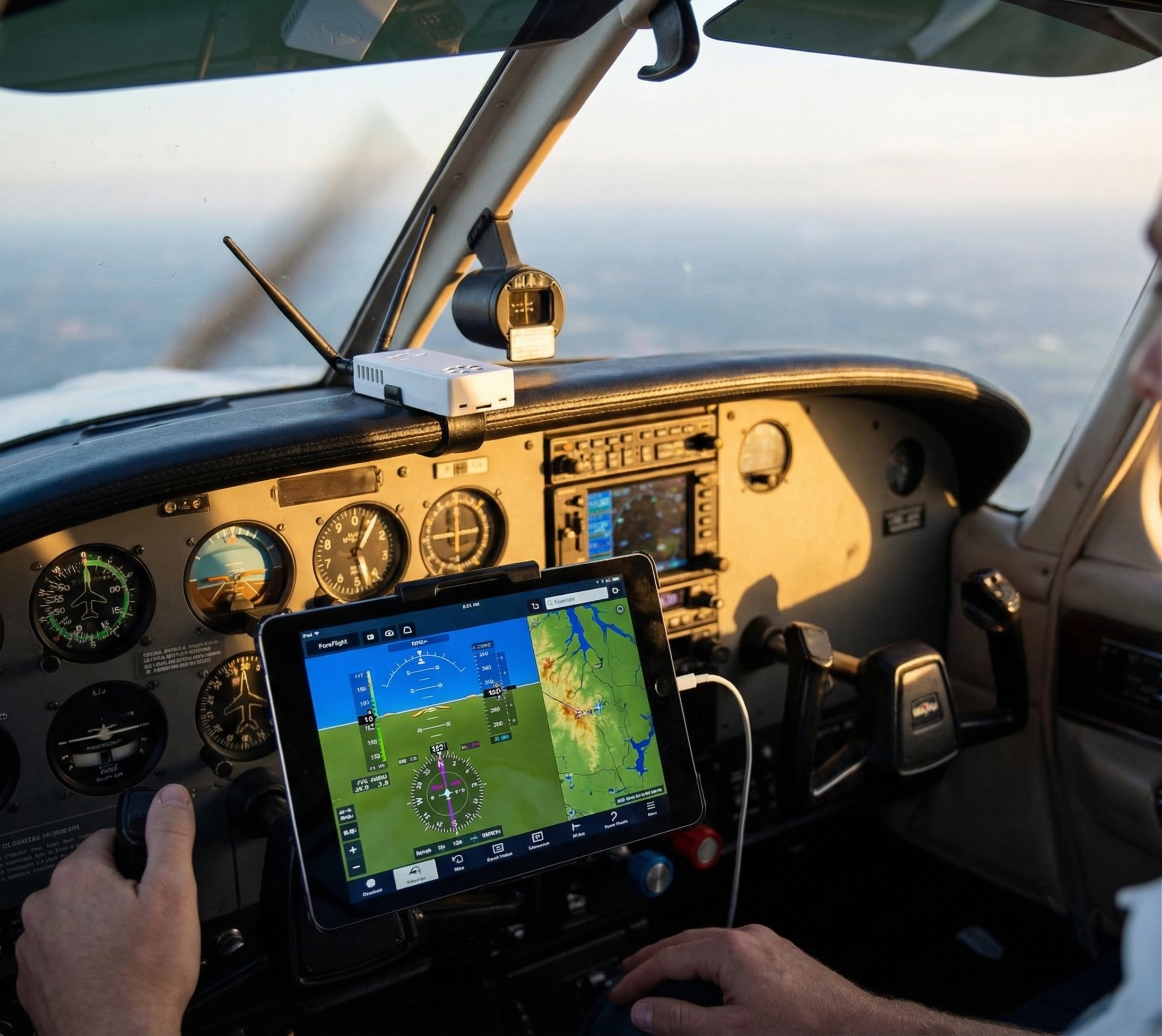
AHRS — if your Stratux includes the AHRS module, you’ll see attitude information (pitch/roll) populate in ForeFlight’s Attitude Indicator or compatible EFB displays

The status page: Stratux also has a built-in web interface. While connected to the Stratux Wi-Fi, open a browser and navigate to http://192.168.10.1 — you’ll see signal levels, GPS status, and traffic count in real time. This is useful for troubleshooting or just confirming everything is working.


Step 5: Mount It for Flight

Stratux doesn’t need to face any particular direction. That said:

  • Keep it elevated if possible — window proximity improves GPS and ADS-B signal
  • Avoid metal obstructions around the antennas (if external antennas are used)
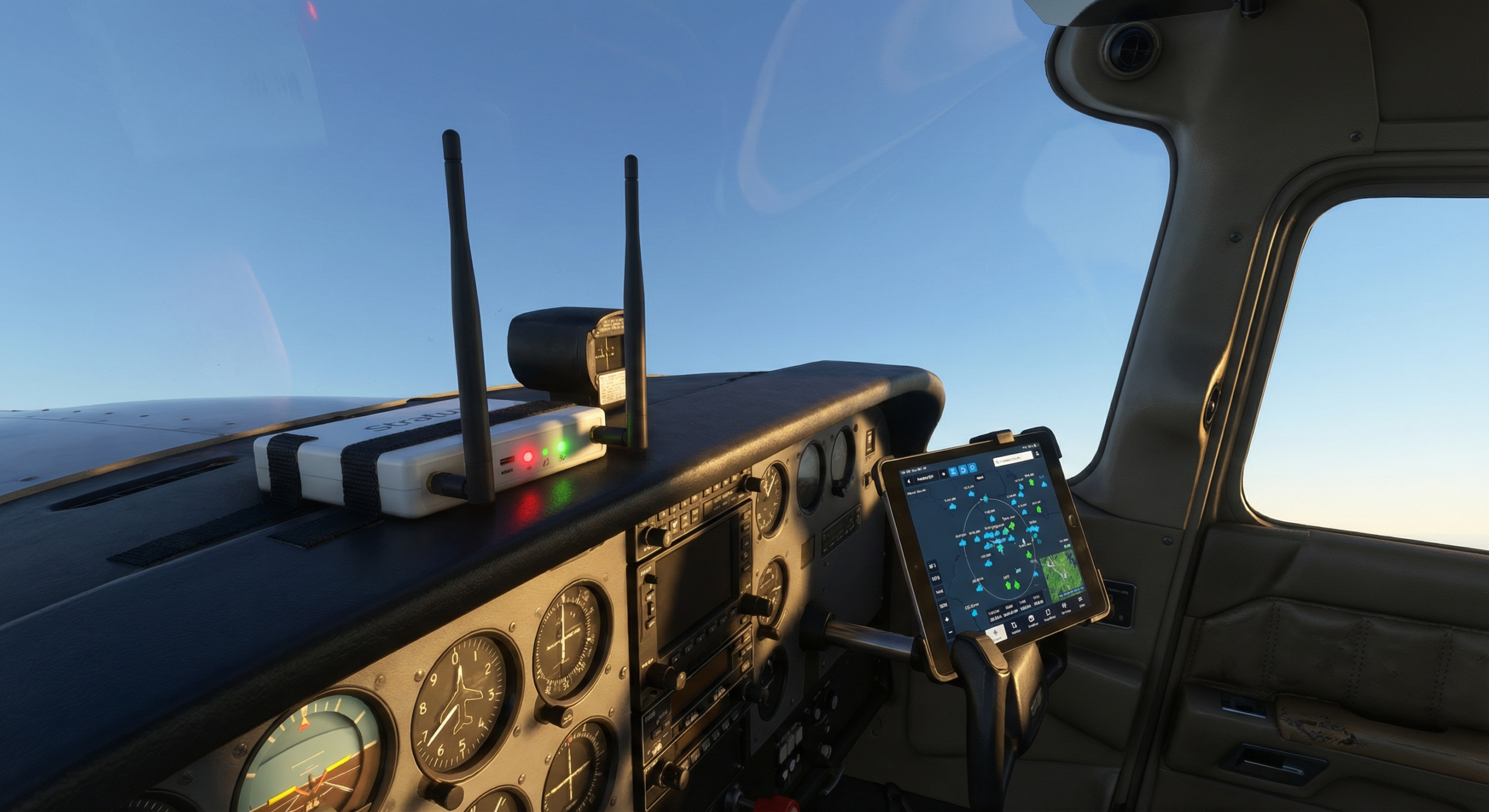
  • Suction cup mounts work well for GA aircraft; place on the glareshield or windshield corner
  • Built-in antennas (on enclosed units) work best near a window

The 978 MHz UAT and 1090 MHz ES antennas are both omnidirectional — orientation doesn’t matter much. Just keep it out of direct sunlight in hot climates (heat kills electronics; a sleeve or shade helps on baking-hot tarmac days).


Troubleshooting — Common Issues

“I don’t see the Stratux Wi-Fi network” – Wait 60 seconds after power-on; the network takes a moment to broadcast – Confirm the unit is powered (check LEDs) – Move closer to the unit — Wi-Fi range is typically 30–50 feet

“ForeFlight/Garmin Pilot shows connected but I’m not seeing traffic” – Confirm you’re within ADS-B range of other equipped aircraft (traffic only appears if another aircraft is transmitting) – Check Stratux web interface (192.168.10.1) for signal levels; zero signal = antenna issue – Confirm you’re not accidentally on a different Wi-Fi network (check your tablet’s Wi-Fi settings)

“I see traffic but no weather” – FIS-B weather requires proximity to a ground station. On the ground in rural areas, you may not receive it. – In flight, FIS-B typically populates within 5–10 minutes above 3,000 AGL – FIS-B is 978 UAT only — if you’re in an area with only 1090 aircraft, you’ll still need UAT reception for weather

“My Android keeps disconnecting” – Android’s “smart network switching” will drop Wi-Fi connections that have no internet – Fix: Go to Settings → Wi-Fi → Stratux network → Advanced and disable “Auto switch to mobile network” or enable Airplane Mode + Wi-Fi


What You’re Receiving (Quick Primer)

Stratux receives two ADS-B frequencies simultaneously:

Band What it carries Range
978 MHz UAT Traffic (UAT-equipped) + FIS-B weather U.S. and Canada (CIFIB towers)
1090 MHz ES Traffic (Mode S transponders, airlines, mil) Worldwide

This dual-band reception is why Stratux shows you traffic that single-band receivers miss. A 978-only receiver can’t see airliners. A 1090-only receiver can’t receive FIS-B weather. Stratux sees both.


You’re Ready to Fly

That’s the complete setup. No ongoing configuration. No mandatory software to manage before every flight. No app subscriptions. You powered it on, connected via Wi-Fi, and your EFB is now receiving ADS-B traffic and weather — the same data feed used by panel-mounted avionics costing 5–10x more.

Questions? The Stratux community on Discord and GitHub has been troubleshooting setups since 2015. Whatever your question, someone’s had it and answered it.


Ready to Get One?

If you’re still comparing options: compare the Crew Dog pre-built Stratux — the same hardware this guide covers, ready to go out of the box with no assembly required.


Posted on Leave a comment

Build a Stratum 1 NTP Server for Under $20

Build a Stratum 1 NTP
Server for Under $20

Your home lab’s time is lying to you. Here’s how to fix that with
a $15 GPS dongle and a Raspberry Pi.


Every device on your network is syncing time from somewhere. Usually
it’s your router, which is syncing from some pool.ntp.org server, which
itself is three or four hops removed from an actual atomic clock. By the
time that timestamp reaches your endpoints, it’s carrying accumulated
drift, network jitter, and whatever latency the upstream pool is having
today.

For most home use, this is fine. For Raspberry Pi clusters, ham radio
digital modes, logging infrastructure, or anything where precise
timestamping matters, it’s noise.

A Stratum 1 NTP server solves this permanently: GPS satellites carry
atomic-clock-derived time. A GPS receiver with a pulse-per-second (PPS)
signal gives you sub-microsecond accuracy. Your entire network syncs
directly from that, with no upstream dependency, no internet
requirement, no pool latency.

Here’s how to build one for under $20.


What You Need

Hardware: – Raspberry Pi (any model — Pi Zero W, Pi
3, Pi 4 all work) – VK-162
USB GPS dongle
— ~$15 on Amazon – microSD card (8GB+ with Raspberry
Pi OS Lite) – Power supply

That’s it. No HAT, no additional hardware, no
soldering. The VK-162 connects over USB and presents as a standard
serial device. Most builds stop here.

Optional for higher accuracy: – GPIO PPS signal
(requires a GPS module with PPS output — the VK-162 doesn’t have an
exposed PPS pin, so this guide uses USB serial for ~1ms accuracy rather
than sub-microsecond. For precision timing applications, see note
below.)

Note: The VK-162 uses a u-blox chipset over USB, which gives you
good accuracy for a homelab NTP server (millisecond-range). If you need
sub-microsecond PPS accuracy for lab instrumentation or network timing,
you’ll want a GPIO-connected GPS module with a PPS output. For home
networks, logging, ham radio, and most homelab use cases, the VK-162
over USB is more than adequate.


Step 1: Flash and
Boot Raspberry Pi OS Lite

Use Raspberry Pi Imager to flash Raspberry Pi OS Lite (64-bit).
Enable SSH during the flash process. No desktop needed — this will run
headless.

Boot, SSH in, update:

sudo apt update && sudo apt upgrade -y

Step 2: Install gpsd

gpsd is the standard GPS daemon for Linux. It handles
talking to the GPS device and exposes a clean socket that other
applications (including chrony) can read.

sudo apt install -y gpsd gpsd-clients

Plug in your VK-162. It will appear as a serial device — usually
/dev/ttyACM0:

ls /dev/ttyACM*

Test that GPS data is coming through:

sudo gpsd /dev/ttyACM0 -F /var/run/gpsd.sock
cgps -s

You should see satellite count, position, and time data after GPS
acquires a fix (put the dongle near a window — it needs sky view). First
fix can take 1-2 minutes cold, faster with a clear view.

If cgps shows data, gpsd is working. Stop it for
now:

sudo killall gpsd

Step 3: Configure gpsd

Edit the default configuration:

sudo nano /etc/default/gpsd
START_DAEMON="true"
GPSD_OPTIONS="-n"
DEVICES="/dev/ttyACM0"
USBAUTO="true"
GPSD_SOCKET="/var/run/gpsd.sock"

Enable and start the service:

sudo systemctl enable gpsd
sudo systemctl start gpsd

Step 4: Install and
Configure Chrony

chrony is a modern NTP implementation that handles GPS
sources well. Replace whatever NTP daemon your system is running:

sudo apt install -y chrony

Edit the chrony configuration:

sudo nano /etc/chrony/chrony.conf

Add these lines (keep any existing pool lines as fallback, or remove
them if you want GPS-only):

# GPS via gpsd
refclock SHM 0 refid GPS precision 1e-1 offset 0.9999 delay 0.2
refclock SHM 2 refid PPS precision 1e-9

# Fallback pools (optional — remove if you want air-gapped operation)
pool 2.debian.pool.ntp.org iburst

# Allow your local network to sync from this server
allow 192.168.0.0/24

# Serve time even if not synced (useful during GPS acquisition)
local stratum 1

Restart chrony:

sudo systemctl restart chrony

Step 5: Verify It’s Working

Check chrony sources:

chronyc sources -v

You should see GPS listed as a source. It will show as ?
initially while acquiring. After GPS lock, it becomes *
(selected) or + (acceptable). This takes a few minutes.

MS Name/IP address         Stratum Poll Reach LastRx Last sample
===============================================================================
#* GPS                           0   4   377    11   -142ns[  +30ns] +/-  953us

That * means chrony is using your GPS as its primary
time source. Your NTP server is now Stratum 1.

Check what your server is now reporting to clients:

chronyc tracking

Look for Stratum : 1. That’s it — you’re done.


Step 6: Point Your Network At
It

On your router or other devices, set the NTP server to your Pi’s IP
address. For home networks, updating the router’s NTP setting pushes
accurate time to every device automatically.

For Linux hosts you want to point directly:

# /etc/chrony/chrony.conf or /etc/ntp.conf
server 192.168.1.x iburst

Accuracy Expectations

With the VK-162 over USB serial, you can expect accuracy in the 1-10
millisecond range — more than sufficient for:

  • Home lab infrastructure
  • Ham radio digital modes (FT8, WSJT-X, APRS)
  • Logging and telemetry timestamps
  • Network monitoring and analysis
  • General sysadmin time sync

For applications requiring microsecond or sub-microsecond accuracy
(telecom infrastructure, financial trading systems, scientific
instrumentation), you’ll want a GPS module with a hardware PPS output
connected to a GPIO pin. That’s a different, more complex build.


Why the VK-162

It’s not the cheapest USB GPS dongle. It’s the one that actually
works without fighting with drivers.

The VK-162 uses a u-blox chipset and presents as a standard CDC-ACM
serial device — no proprietary drivers, no vendor software required.
It’s plug-and-play on Raspberry Pi OS, Ubuntu, Fedora, FreeBSD, and most
Linux distributions. gpsd recognizes it immediately.

Cheap dongles with SiRF or MediaTek chipsets often require specific
baud rates, initialization strings, or kernel modules that cause
headaches. The u-blox chipset is the industry standard for a reason.

Get
the VK-162 on Amazon →


Troubleshooting

GPS not appearing as /dev/ttyACM0: Try
/dev/ttyUSB0. Check dmesg | grep -i usb after
plugging in.

cgps shows no fix: Put the antenna near a window.
The VK-162 can acquire indoors near glass but struggles in basements or
metal-enclosed spaces.

Chrony showing GPS as ? after 10+
minutes:
Check that gpsd is running
(systemctl status gpsd) and that the socket path matches
your chrony config.

Chrony ignoring GPS source: The SHM offset value
(0.9999) may need tuning for your hardware. Start with a
larger allowed offset in chrony.conf: maxdistance 1.0.


What You’ve Built

A GPS-disciplined NTP server that: – Syncs directly from satellite
time signals – Needs no internet connection to operate – Serves your
entire local network as Stratum 1 – Costs less than one month of most
cloud monitoring services – Runs on hardware you probably already
have

Time is infrastructure. It should be reliable, local, and yours.


VK-162
USB GPS Dongle on Amazon →

Posted on Leave a comment

ADS-B In vs. Out: What the Mandate Debate Means for GA Pilots

If you’ve been reading aviation news lately, you’ve seen a lot of talk about ADS-B requirements. Here’s what’s actually being debated — and what it means for pilots who fly GA.

The January collision near DCA was a tragedy. Sixty-seven people died. And in the months since, Congress has been asking hard questions about why modern safety technology wasn’t doing what it’s supposed to do.

One of those questions keeps coming up: ADS-B.

If you fly GA, you’ve probably heard a lot of noise about ADS-B mandates lately. Some of it applies to you. A lot of it doesn’t. Let’s break it down clearly — because the “ADS-B” being debated in congressional hearings is a different piece than the ADS-B that makes your cockpit safer every flight.

Two Systems. One Name. Total Confusion.

When most people say “ADS-B,” they’re actually talking about two separate, complementary systems:

ADS-B Out — The transmitter. Your aircraft broadcasts its position, altitude, speed, and identification to ground stations and other aircraft every second. Think of it as your aircraft saying “I’m here” to everyone around you.

ADS-B In — The receiver. Your cockpit equipment listens for what everyone else is broadcasting. Other aircraft positions, weather data from ground stations, PIREP uplinks. Think of it as your aircraft listening to the full picture around you.

You can have Out without In. You can have In without Out. Most of the post-DCA debate is about Out. Most of what makes Stratux valuable is In.

If you’re new to ADS-B entirely, here’s a primer on what ADS-B actually does and why the FAA mandated it.

What the Mandate Already Requires

Here’s something that gets lost in the news coverage: for most GA operations, the ADS-B Out mandate has been law since January 1, 2020.

FAA rule 14 CFR § 91.225 requires ADS-B Out equipment in:

  • Class A airspace (above 18,000 ft)
  • Class B airspace (major airports, like ATL, LAX, ORD)
  • Class C airspace (medium airports with approach control)
  • Class E airspace above 10,000 ft MSL (except below 2,500 AGL)
  • Within 30 nm of Class B airports (the “Mode C veil”)
  • Above the ceiling of Class B or Class C from the surface

If you fly a modern aircraft into most controlled airspace, you’re already compliant — or you already needed to be.

What’s being debated now is not a new mandate for GA. The current congressional focus is on military exemptions — specifically, whether military aircraft operating near civilian airspace should be required to use ADS-B Out the same way civilian aircraft are. The Black Hawk helicopter involved in the DCA collision was operating under a military exemption. That’s the gap that families and legislators are pushing to close.

What GA Pilots Should Actually Pay Attention To

The DCA collision is driving a broader ADS-B conversation, and that’s not a bad thing. But for GA pilots specifically, the question worth asking isn’t “do I need to comply with a new mandate?” — it’s “am I getting as much out of ADS-B as I could be?”

Here’s what most GA pilots still don’t know: ADS-B Out was only half the deal.

When the FAA mandated ADS-B Out in 2020, the promise was that pilots who also equipped with ADS-B In would gain something genuinely valuable: free, real-time traffic and weather data in the cockpit. No subscription. No data plan. No satellite fees. Just the FIS-B (weather) and TIS-B (traffic) data that FAA ground stations broadcast continuously.

That data is still out there. FAA ground stations are still broadcasting it. And every flight you take without an ADS-B In receiver is a flight where you’re missing free information you paid for (through avgas taxes and landing fees) to build.

ADS-B In: The Piece You’re Missing

Here’s what an ADS-B In receiver gives you in the cockpit:

Traffic (TIS-B): Positions of other ADS-B Out-equipped aircraft around you, updated every second. No ATC radio required. No radar transponder interrogation. Just a live picture of who’s around you.

Weather (FIS-B): METARs, TAFs, winds aloft, AIRMETs, SIGMETs, TFRs, and NEXRAD radar — all broadcast free from FAA ground stations. This is the data that used to require a $50/month XM Weather subscription.

AHRS (Attitude Heading Reference System): Some receivers also include synthetic attitude data — a valuable ~$20 backup when you want additional situational awareness.

The catch: none of this shows up on your iPad or EFB without a receiver in your cockpit pulling it in.

The Affordable Path to Full Situational Awareness

For a long time, “equip with ADS-B In” meant buying a $500–900 sealed receiver that you couldn’t repair, update yourself, or understand at a component level.

That changed in 2015 when the open-source community built a better option.

Stratux is an open-source ADS-B In receiver that runs on commodity hardware. The software is maintained by a community of pilots and engineers who actually use it. The hardware is repairable — every component is replaceable if something fails. And the cost is a fraction of proprietary alternatives.

This is the same philosophy as the Framework Laptop — build it so you can fix it instead of replace it. When your GPS module fails, you replace the $15 module, not the whole unit.

Crew Dog Electronics builds Stratux receivers that are ready to fly out of the box — no kit assembly required, no Raspberry Pi wrangling. Connect it to your iPad running ForeFlight® (or another compatible EFB), and you have live traffic and weather in the cockpit for a one-time cost. No subscription. No renewal. No vendor holding your safety data hostage.

It works in the US and Canada (Canadian CIFIB towers broadcast the same FIS-B data). Setup with ForeFlight takes about 5 minutes.

The Point

The DCA collision was a tragedy, and the congressional response to close military ADS-B loopholes is appropriate. But for GA pilots watching that news coverage: your compliance question was answered in 2020.

The better question is whether you’re flying with the full picture. ADS-B Out tells the world you’re there. ADS-B In tells you where everyone else is.

If you’re flying IFR or into busy airspace without an In receiver, you’re operating with half the information available to you — information that’s being broadcast for free, waiting for you to pick it up.

That’s a solvable problem. And it doesn’t cost $900.

Posted on Leave a comment

Maintaining Your Stratux: Tips for Long-Term Reliability

One of the best things about Stratux is that it’s repairable and maintainable—unlike sealed commercial units that become expensive paperweights when they fail. But “repairable” doesn’t mean “indestructible.” To keep your Stratux running reliably for years, you need to understand its weak points and take preventive action.

In this guide, we’ll cover the essential maintenance tasks that will keep your Stratux receiver flying strong: SD card care, firmware updates, antenna maintenance, thermal management, and more. Think of this as your Stratux care checklist.

The #1 Failure Point: SD Cards

Let’s start with the most common cause of Stratux failures: microSD card corruption. SD cards have a limited number of write cycles, and the Stratux operating system is constantly writing logs, caching data, and updating files. Over time, cheap or worn-out cards will fail—often without warning.

SD Card Best Practices:

  • Use quality cards: Stick with SanDisk, Samsung, or Kingston. Avoid no-name brands from Amazon.
  • Choose endurance-rated cards if available: “High Endurance” or “MAX Endurance” cards are designed for constant read/write cycles (think dashcams and security cameras). They last longer.
  • 32GB is the sweet spot: Larger cards don’t add functionality, and smaller cards may run out of space for logs.
  • Keep a backup image: Once you have Stratux configured the way you like, create a backup image of the SD card. If it fails, you can restore to a new card in minutes.
  • Replace annually: Treat SD cards as consumable. Budget $10/year for a fresh card and swap it out preventively.

How to Back Up Your SD Card:

On Mac, use Disk Utility or dd from Terminal. On Windows, use Win32DiskImager. On Linux, use dd. The process takes 15-30 minutes and could save you hours of troubleshooting later.

Pro tip: Label your backup image file with the date so you know when it was created. Store it somewhere safe—cloud storage, external drive, etc.

Firmware Updates: Stay Current (But Not Bleeding Edge)

The Stratux development team periodically releases firmware updates with bug fixes, performance improvements, and new features. Keeping your Stratux updated ensures compatibility with the latest EFB app versions and ADS-B standards.

How to Update Stratux Firmware:

  1. Connect to your Stratux WiFi and open a web browser
  2. Navigate to http://192.168.10.1 (the Stratux web interface)
  3. Go to the Settings page
  4. Look for “Software Update” or “Update” section
  5. If a new version is available, click “Update”
  6. Wait for the update to complete (do NOT power off during this process)
  7. Reboot and verify everything still works

When to Update (and When Not To):

  • Update if: You’re experiencing bugs, missing features, or your EFB app recommends it
  • Don’t update the night before a big trip: If it ain’t broke, don’t fix it right before you need it most
  • Read the release notes: Know what’s changing before you commit
  • Wait a week after a new release: Let early adopters find the bugs first

Frequency: Check for updates every 2-3 months, or before the start of flying season. Most pilots update 2-3 times per year.

Thermal Management: Keep It Cool

Stratux generates heat—especially the SDR dongles, which can get surprisingly hot during extended operation. Heat is the enemy of electronics. Overheating can cause:

  • Reduced SDR sensitivity (you’ll miss distant aircraft)
  • System crashes and reboots
  • Shortened component lifespan
  • SD card corruption (heat accelerates wear)

Cooling Best Practices:

  • Use a case with ventilation: Quality Stratux cases have airflow holes and fan mounts. Don’t seal your Stratux in an airtight box.
  • Install a cooling fan: A small 5V fan keeps air moving over the Pi and SDRs. Most kits include one—use it.
  • Mount away from direct sunlight: Don’t leave your Stratux on the glareshield in the summer sun. Find a shaded spot.
  • Monitor temperature: The Stratux web interface shows CPU temperature. If it’s consistently above 70°C (158°F), you need better cooling.
  • Consider heatsinks: Small adhesive heatsinks on the SDR dongles can help dissipate heat, especially in hot climates.

Summer flying tip: If you park in the sun before a flight, your Stratux may be heat-soaked. Let it run for a few minutes before takeoff to ensure it’s stable.

Antenna Care and Maintenance

Your antennas are critical to ADS-B reception. Damaged or poorly connected antennas mean missed traffic and incomplete weather. Fortunately, antennas are simple to inspect and maintain.

Antenna Checklist:

  • Inspect connectors: Make sure SMA connectors are tight and not bent. A loose connection kills performance.
  • Check for physical damage: Cracks, kinks, or broken elements reduce antenna gain.
  • Clean contacts: Dust and corrosion can build up on connectors. A quick wipe with a clean cloth helps.
  • Verify you haven’t swapped them: The 978 MHz (shorter) and 1090 MHz (longer) antennas look similar but are tuned differently. Double-check they’re on the correct SDR.
  • Upgrade if needed: Stock antennas work fine, but if you fly in remote areas or want maximum range, consider upgraded antennas with higher gain.

Pro tip: If you’re getting poor reception on one frequency but not the other, swap the antennas between SDRs as a troubleshooting step. If the problem moves with the antenna, you’ve found the culprit.

Power Supply: The Forgotten Component

A flaky power supply causes mysterious reboots, WiFi dropouts, and GPS glitches. The Raspberry Pi needs a stable 5V/3A supply. Skimping on power is a false economy.

Power Best Practices:

  • Use a quality USB power adapter: Official Raspberry Pi adapters are ideal. Avoid cheap phone chargers.
  • Avoid cigarette lighter adapters if possible: They can be electrically noisy. If you use one, get a high-quality unit rated for 3A+ for best results.
  • Check your cable: Long, thin USB cables have voltage drop. Use a short, thick cable (ideally 20 AWG or better).
  • Monitor voltage: Some Raspberry Pi models display a lightning bolt icon if voltage drops too low. If you see this, fix your power immediately.
  • Consider a battery pack: A USB battery bank provides clean, stable power and can run Stratux for 4-6 hours. Great for portable operation or as backup.

Physical Mounting and Protection

Stratux isn’t certified avionics—it’s not shock-mounted or vibration-tested. But you can minimize wear and tear with smart mounting choices.

Mounting Tips:

  • Secure it: Velcro, non-slip pads, or a dedicated mount. Don’t let your Stratux slide around during turbulence.
  • Protect from impact: A good case is essential. It protects against accidental drops and bumps.
  • Keep it accessible: You may need to reboot occasionally. Mount it where you can reach the power switch.
  • Cable management: Secure the power and antenna cables so they don’t snag or pull loose.

Routine Maintenance Schedule

Here’s a simple maintenance schedule to keep your Stratux healthy:

Frequency Task
Before each flight Power on, verify GPS lock and traffic reception
Monthly Inspect antennas and connectors, check case ventilation
Every 2-3 months Check for firmware updates
Annually Replace SD card preventively, clean case interior, verify all connections
As needed Replace damaged cables, upgrade components, recalibrate AHRS

Troubleshooting Common Wear Issues

Symptom: Intermittent GPS lock
Likely cause: Loose GPS module connection, failing GPS antenna, or SD card corruption affecting GPS driver.
Fix: Reseat GPS module, check antenna connection, reflash SD card.

Symptom: Gradual decrease in traffic reception
Likely cause: SDR dongles overheating, antenna damage, or SDR firmware issues.
Fix: Improve cooling, inspect/replace antennas, update Stratux firmware.

Symptom: Random reboots during flight
Likely cause: Insufficient power supply, overheating, or SD card failure.
Fix: Upgrade power supply, add cooling, replace SD card.

When to Replace vs Repair

One of Stratux’s greatest strengths is repairability. Almost every component is modular and replaceable:

  • SD card failure? Swap in a new one ($10)
  • SDR dongle died? Replace it ($25)
  • GPS module flaky? New module is $15-30
  • Raspberry Pi dead? Replace for $35-55
  • Case cracked? 3D print a new one or buy a replacement

Compare that to a commercial ADS-B receiver: if it fails out of warranty, you’re often looking at full replacement cost ($500-800). With Stratux, you fix what broke and keep flying.

This is the Framework Laptop philosophy in action: you own your hardware, you can repair it, and you’re not at the mercy of a manufacturer’s support policy.

The Bottom Line

Stratux is low-maintenance, but not no-maintenance. A little preventive care goes a long way:

  • Replace your SD card annually
  • Keep firmware reasonably up-to-date
  • Don’t let it overheat
  • Use clean, stable power
  • Inspect antennas periodically

Do these things, and your Stratux from Crew Dog Electronics will serve you reliably for years. And when something does eventually fail? You’ll fix it yourself for pocket change and be back in the air.

Maintain it, fly it, own it forever.

Posted on Leave a comment

How to Use Stratux with Avare, FlyQ, and Other EFBs

ForeFlight gets all the attention when it comes to EFB apps—and for good reason, it’s excellent. But ForeFlight isn’t the only game in town, and plenty of pilots fly happily with Avare, FlyQ, iFly GPS, WingX, or Garmin Pilot. The good news? Stratux works beautifully with all of them.

In this guide, we’ll walk through how to connect your Stratux receiver to the most popular EFB apps beyond ForeFlight. Whether you’re an Android user flying with Avare, a FlyQ devotee, or exploring alternatives, you’ll be up and running in minutes.

Why Choose a Different EFB?

Before we dive into setup, let’s acknowledge why pilots choose alternatives to ForeFlight:

  • Price: ForeFlight costs $299/year for the Plus plan. Avare is free. FlyQ is $99/year. That’s significant for budget-conscious pilots.
  • Platform: ForeFlight is iOS-only. If you fly with an Android tablet, you need a different solution.
  • Features: Some pilots prefer the interface or specific features of other apps.
  • Philosophy: Avare is open-source, appealing to pilots who value transparency and community development.

The beauty of Stratux is that it’s platform-agnostic. It speaks standard protocols (GDL 90, NMEA) that nearly every EFB app understands.

Avare (Android): Free, Open-Source, and Capable

Avare is the go-to EFB for Android pilots. It’s completely free, open-source, and surprisingly full-featured. It includes sectional charts, IFR plates, airport diagrams, weather, and—crucially—full support for Stratux.

Setting Up Stratux with Avare:

  1. Power on your Stratux and wait for the WiFi network to appear (usually named “stratux”)
  2. Connect your Android device to the Stratux WiFi network (password: “stratux” by default)
  3. Open Avare and tap the menu icon (three horizontal lines)
  4. Go to Settings → IO Options
  5. Enable “Connect to Stratux” or select GDL90 as the input protocol
  6. Avare should auto-detect the Stratux at IP address 192.168.10.1
  7. Verify connection: You should see GPS position, traffic targets, and weather tiles appearing on the map

Pro Tips for Avare + Stratux:

  • Download chart data over WiFi at home—Stratux’s network won’t have internet access in flight
  • Avare’s traffic display is simple but effective—tap a target for details
  • Enable “Show METAR” overlay to see weather conditions at a glance
  • Avare supports AHRS from Stratux if you have it configured

FlyQ (iOS/Android): Affordable and Powerful

FlyQ is a strong ForeFlight competitor at a fraction of the price ($99/year for the full VFR+IFR suite). It’s available on both iOS and Android, has a clean interface, and works flawlessly with Stratux.

Setting Up Stratux with FlyQ:

  1. Connect to the Stratux WiFi network from your device
  2. Open FlyQ and tap the menu
  3. Go to Settings → Devices & Connectivity
  4. Under ADS-B Devices, select “Stratux” or “Generic GDL90”
  5. FlyQ will scan for the device and connect automatically
  6. Verify: Check that GPS, traffic, and weather are all showing as “Connected” in green

FlyQ Features with Stratux:

  • Full NEXRAD weather overlay
  • Traffic display with altitude, heading, and distance
  • Synthetic vision (if your Stratux has AHRS)
  • Geo-referenced approach plates with GPS position
  • Verbal traffic alerts (“Traffic, 2 o’clock, 500 feet below”)

FlyQ’s traffic alerts are particularly impressive—clear, timely, and not overly chatty. It strikes a good balance between awareness and distraction.

Garmin Pilot (iOS/Android): Premium Option

Garmin Pilot is the official Garmin EFB app. It’s pricey ($99/year just for the app, before chart subscriptions), but if you already have a Garmin panel and want seamless integration, it’s worth considering. And yes, it works with Stratux.

Setting Up Stratux with Garmin Pilot:

  1. Connect to Stratux WiFi
  2. Open Garmin Pilot
  3. Tap Tools → Devices
  4. Add a new device and select “GDL 39 / GDL 39 3D” (Stratux emulates this protocol)
  5. Enter the IP address: 192.168.10.1
  6. Garmin Pilot will connect and display traffic/weather overlays

Note: Garmin Pilot sometimes prefers Garmin-branded hardware. If you have connection issues, try selecting “Generic GDL 90” instead.

WingX (iOS): Veteran EFB with a Loyal Following

WingX has been around since the early iPad days. It’s not as flashy as ForeFlight or FlyQ, but it’s solid, stable, and well-liked by pilots who value reliability over bells and whistles.

Setting Up Stratux with WingX:

  1. Connect to Stratux WiFi
  2. Open WingX
  3. Go to Settings → Connected Devices
  4. Select “Add Device” and choose “Stratux” or “GDL 90”
  5. WingX should auto-discover the Stratux and connect
  6. Check the device status page to confirm GPS, traffic, and weather are active

iFly GPS (iOS/Android/Windows): Cross-Platform Flexibility

iFly GPS is one of the few EFB apps that runs on iOS, Android, AND Windows tablets. If you fly with a Windows Surface or similar device, iFly is your best bet. It also has dedicated hardware options, but works great with Stratux on any tablet.

Setting Up Stratux with iFly GPS:

  1. Connect to Stratux WiFi
  2. Open iFly GPS
  3. Tap Menu → Setup → External Devices
  4. Enable “WiFi Device” and select “Stratux”
  5. iFly will connect and display status in the top bar
  6. Verify traffic and weather are populating on the map

Foreflight Alternatives Summary

EFB App Platform Cost Stratux Compatibility
Avare Android Free Excellent (native support)
FlyQ iOS, Android $99/yr Excellent
Garmin Pilot iOS, Android $99/yr + charts Good (GDL 39 mode)
WingX iOS $99/yr Good
iFly GPS iOS, Android, Windows $69-$99/yr Excellent

Troubleshooting Common Connection Issues

Problem: Can’t see Stratux WiFi network
Solution: Wait 60-90 seconds after power-on for Stratux to fully boot. If still missing, try rebooting the Stratux or reflashing the SD card.

Problem: Connected to WiFi but no data in app
Solution: Check that your EFB app is set to look for external GPS/ADS-B. Verify the IP address (should be 192.168.10.1). Try forgetting the WiFi network and reconnecting.

Problem: GPS works but no traffic or weather
Solution: Make sure you’re in an area with ADS-B coverage (not in a remote valley). Check the Stratux web interface (http://192.168.10.1) to see if towers are being received. Verify both SDR radios are connected.

Problem: Frequent disconnections
Solution: Low power supply can cause WiFi instability. Use a high-quality USB power source (5V/3A minimum). Avoid long or thin USB cables. Check for overheating.

Advanced: Using Multiple Devices Simultaneously

One of Stratux’s killer features: it can serve multiple devices at once. You can have your iPad running FlyQ, your co-pilot’s Android tablet running Avare, and a phone running Garmin Pilot—all connected to the same Stratux unit simultaneously.

This is especially useful for:

  • Flight instruction (instructor and student both have moving maps)
  • Dual-pilot operations (both pilots have independent displays)
  • Backup redundancy (if one tablet dies, the other keeps working)

The Bottom Line

Stratux’s open-source, standards-based approach means it works with virtually every EFB app on the market. You’re not locked into a single ecosystem. Whether you’re a die-hard Avare user, a FlyQ convert, or experimenting with different apps, your Stratux from Crew Dog Electronics will deliver traffic and weather reliably.

That’s the Framework Laptop philosophy in action: open standards, user choice, and freedom to use the tools that work best for you. No vendor lock-in. No artificial restrictions. Just solid ADS-B data delivered to whatever device you choose to fly with.

Fly the app you love, with the hardware that just works.

Posted on Leave a comment

Stratux AHRS: How It Works and What to Expect

Let’s talk honestly about Stratux AHRS. It’s one of the most misunderstood features of the Stratux ecosystem, and one that delivers genuine value when you understand what it does and how to get the best from it. If you’re considering adding AHRS to your Stratux—or want to optimize the AHRS you already have—this guide is for you.

We’ll cover how AHRS works, what it can realistically do, tips for best performance, and why it’s a worthwhile addition to your setup.

What is AHRS?

AHRS stands for Attitude and Heading Reference System. It’s the technology that tells your instruments (or EFB app) the aircraft’s pitch, roll, and yaw. In a modern glass cockpit, AHRS feeds the attitude indicator (artificial horizon), directional gyro, and synthetic vision displays.

Traditional AHRS systems use gyroscopes, accelerometers, and magnetometers to calculate aircraft attitude. They’re calibrated, temperature-compensated, shock-mounted, and certified to rigorous standards. They cost thousands of dollars and require professional installation.

Stratux AHRS uses a $15-30 MEMS sensor module connected to the Raspberry Pi. It’s not certified or shock-mounted like panel units — but at $20-30 for the module, it delivers remarkable capability for the price. Here’s how to get the best performance from it.

How Stratux AHRS Works

The most common AHRS module for Stratux is the MPU-9250 or ICM-20948 chip. These tiny sensors contain:

  • 3-axis gyroscope: Measures angular velocity (how fast the aircraft is rotating)
  • 3-axis accelerometer: Measures linear acceleration and gravity vector
  • 3-axis magnetometer: Measures magnetic field (for heading reference)

The Stratux software reads these sensors, applies sensor fusion algorithms, and outputs attitude data to your EFB app via WiFi. Your app—ForeFlight, Garmin Pilot, FlyQ, etc.—then displays synthetic vision or backup attitude information.

The Challenge: Sensor Fusion

Raw sensor data is noisy. The accelerometer picks up every bump and vibration. The magnetometer is affected by nearby electronics and metal. The gyroscope drifts over time. To produce usable attitude information, these sensors must be “fused” using complex math (typically a Kalman filter or complementary filter).

Certified AHRS systems have years of engineering behind their sensor fusion algorithms. Stratux uses proven open-source sensor fusion algorithms that work well for their intended purpose: backup attitude reference and synthetic vision for situational awareness.

What Stratux AHRS Can Do

In smooth air, with proper calibration and mounting, Stratux AHRS can provide:

  • Basic pitch and roll indication — typically accurate within a few degrees in stable flight with proper mounting
  • Synthetic vision overlays — terrain and obstacle awareness on your EFB
  • Backup attitude reference — a valuable backup that has helped pilots in real emergencies
  • Heading information — with proper calibration, a useful reference for orientation

For VFR flying in good weather, Stratux AHRS can enhance your situational awareness. It’s genuinely useful for low-altitude terrain avoidance and maintaining orientation in hilly or mountainous areas.

What Stratux AHRS Cannot Do

Here’s what to know for best performance:

1. It’s Not for IMC

Stratux AHRS is not certified for IFR flight — no portable AHRS is, including Sentry’s similar MEMS-based system. That said, it serves as a genuine emergency backup. If you lose your vacuum instruments in IMC, Stratux AHRS can help you keep wings level long enough to get out of the situation. It’s designed as a backup attitude reference and situational awareness tool, not a primary flight instrument.

2. It Drifts in Turns

During sustained turns or unusual attitudes, the accelerometer-based attitude correction gets confused. Centrifugal forces mimic gravity, and the system can lose accuracy. Certified AHRS units compensate for this with GPS-aided algorithms; Stratux handles this through its complementary filter, though extended coordinated turns can reduce accuracy temporarily — similar to how even vacuum-driven attitude indicators precess during extended turns.

3. Mounting Matters (A Lot)

Stratux AHRS assumes the sensor is level with the aircraft’s attitude. If your Stratux unit is sitting at an angle on your passenger seat or slipping around in a cupholder, the attitude indication won’t be accurate. The solution is simple: secure your Stratux unit with a proper mount, Velcro, or 3D-printed bracket on a flat surface. With good mounting and calibration, AHRS performs well.

4. Vibration Degrades Performance

Every engine vibration, every bump of turbulence, every gust shakes the sensor. Certified panel-mount AHRS units are shock-mounted, but even portable commercial units like Sentry use similar MEMS sensors without shock mounting. Stratux’s filtering handles normal vibration well — in smooth to moderate conditions, it performs admirably. Behind a particularly rough radial engine, consider adding vibration dampening to your mount.

5. Magnetometer Interference

The magnetometer (used for heading) is easily disturbed by nearby electronics, speakers, metal structure, and even your iPad. Magnetic declination must be set correctly. With good calibration practices, you’ll get a solid heading reference that’s useful for orientation and synthetic vision.

Calibration: The Make-or-Break Step

If you decide to use Stratux AHRS, proper calibration is essential. Here’s the process:

  1. Mount the Stratux securely — it must be level with the aircraft’s longitudinal and lateral axes
  2. Access the Stratux web interface — connect to the WiFi network and go to http://192.168.10.1
  3. Navigate to the AHRS settings page
  4. Place the aircraft on level ground — use a bubble level to verify
  5. Run the accelerometer calibration — this establishes the “level flight” reference
  6. Perform a magnetometer calibration — this requires rotating the aircraft (or the Stratux) through multiple orientations to map magnetic interference

Pro tip: Recalibrate every few flights, especially if you’ve moved the Stratux or flown to a location with significantly different magnetic declination.

Real-World Performance: What Pilots Report

I’ve talked to dozens of Stratux users about their AHRS experience. Here’s the consensus:

  • “Great for VFR situational awareness” — the most common feedback from pilots using it regularly
  • “Synthetic vision is awesome for the price” — terrain awareness on a $20 module is incredible value
  • “Mounting and calibration make all the difference” — pilots who take time to set it up properly report the best results
  • “Nice backup to have” — peace of mind knowing you have an attitude reference if you need it
  • “Performs better than I expected” — many pilots are pleasantly surprised once properly configured

Should You Add AHRS to Your Stratux?

Here’s my recommendation, pilot to pilot:

AHRS is a no-brainer if:

  • You fly in mountainous terrain and want synthetic vision terrain awareness
  • You want a backup attitude reference for added safety
  • You’re building your own Stratux and the module only costs $20-30
  • You want the full Stratux experience with all available features

You might skip it if:

  • You already have a full glass panel with backup instruments
  • You only fly in flat terrain with good VFR conditions
  • You want the absolute simplest setup

Stratux AHRS vs Certified Units

How does Stratux AHRS compare? It’s important to understand what you’re comparing — a $20 add-on module versus $2,000-$15,000 certified panel instruments. The real comparison is against other portable units like Sentry, which use similar MEMS sensors:

Feature Stratux AHRS Certified AHRS
Accuracy ±3-5° (properly mounted) ±1-2°
Drift Manageable with recalibration Minimal, GPS-aided
Turbulence handling Good in smooth-moderate air Excellent (advanced filtering)
Calibration User-performed, straightforward Factory-calibrated
Mounting User-mounted (flexible placement) Professional install
Cost $20 module $2,000-$15,000

At $20-30 for the AHRS module, Stratux delivers remarkable value. You get synthetic vision, backup attitude reference, and heading information for less than the cost of a single hour of flight instruction. Certified panel-mount AHRS costs 100-500x more — but for situational awareness and backup reference, Stratux AHRS punches well above its price point.

The Bottom Line on Stratux AHRS

Stratux’s real value is dual-band ADS-B traffic and weather reception. The core Stratux functionality is rock-solid and genuinely useful. AHRS is a valuable add-on that enhances your situational awareness with synthetic vision and backup attitude reference.

If you’re buying a pre-built Stratux from Crew Dog Electronics, our pre-built units come with AHRS included, properly mounted and calibrated. If you’re building your own, add the module for $20-30 — it’s one of the best value upgrades in aviation electronics.

The Framework Laptop philosophy—repairability, openness, hackability—applies here. Stratux AHRS delivers real value for situational awareness and emergency backup. It’s not a certified primary instrument — but at this price point, nothing is. What it IS is an incredibly capable tool that gives you synthetic vision and attitude reference for the cost of lunch.

Fly smart, know your tools, and enjoy the incredible situational awareness that Stratux AHRS brings to your cockpit.

Stay safe up there.

Posted on Leave a comment

Understanding ADS-B In vs Out: What Pilots Need to Know

If you’ve been hearing about ADS-B for years but still aren’t 100% clear on the difference between “ADS-B In” and “ADS-B Out”—or what the FAA actually requires—you’re not alone. These terms get thrown around constantly, but the distinction matters for your wallet, your panel, and your safety.

Let’s break it down in plain English, pilot to pilot.

ADS-B Out: The FAA Mandate

ADS-B Out is what the FAA requires for most operations. Since January 1, 2020, aircraft flying in controlled airspace (Class A, B, and C, plus Class E above 10,000 feet MSL) must be equipped with ADS-B Out capability.

What does ADS-B Out do? Your aircraft broadcasts its position, altitude, velocity, and call sign to ATC and other aircraft. Think of it as a digital transponder on steroids. Instead of just responding to radar interrogations, your plane is actively announcing its presence to the world.

ADS-B Out Requirements:

  • Must be certified and installed in your panel
  • Transmits on 1090 MHz (for jets and high-performance aircraft) or 978 MHz UAT (for most GA aircraft below 18,000 feet)
  • Requires a WAAS GPS source
  • Must meet DO-260B or DO-282B standards
  • Costs $1,500-$6,000+ for hardware and installation

The bottom line: If you fly in the airspace covered by the mandate, you need ADS-B Out. There’s no DIY option here—this is certified avionics territory. Popular solutions include Garmin GTX 345, Stratus ESG, FreeFlight RANGR, and uAvionix tail Beacon.

ADS-B In: Free Traffic and Weather

ADS-B In is the receiver side of the equation—and this is where things get interesting for budget-conscious pilots. ADS-B In lets you receive:

  • Traffic: See nearby aircraft broadcasting ADS-B Out (both 1090 and 978 MHz)
  • Weather: FIS-B services including NEXRAD radar, METARs, TAFs, winds aloft, AIRMETs, SIGMETs, and TFRs
  • TIS-B traffic: ATC rebroadcasts non-ADS-B traffic in your area (requires you to have ADS-B Out)

Here’s the key difference: ADS-B In is NOT required by the FAA. It’s optional. But it’s incredibly useful for situational awareness, and thousands of pilots have added it to their cockpits.

ADS-B In Options:

  • Portable receivers: Stratux, Sentry, Ping, SkyEcho—these connect wirelessly to your iPad or EFB
  • Panel-mounted: Many ADS-B Out transponders include built-in ADS-B In (like the GTX 345 or Stratus ESGi)
  • Hybrid: Some pilots install certified Out but use portable In to save on panel space and cost

What Does Stratux Provide?

A Stratux receiver is an ADS-B In device. It receives both 978 MHz UAT and 1090 MHz transmissions, giving you dual-band coverage. That means:

  • You’ll see traffic from aircraft broadcasting on either frequency
  • You’ll receive FIS-B weather (only transmitted on 978 MHz in the US)
  • You’ll get GPS position data from the built-in GPS module
  • Optional AHRS provides attitude information for synthetic vision and backup attitude reference

What Stratux does NOT provide: Stratux is receive-only. It does not meet the ADS-B Out mandate. You still need a certified transponder if you fly in controlled airspace. Think of Stratux as an amazing situational awareness tool, not a compliance solution.

TIS-B: The Bonus Feature

Here’s where things get clever. If you have ADS-B Out installed, ATC ground stations will rebroadcast nearby non-ADS-B traffic to you via TIS-B (Traffic Information Service-Broadcast). This means your ADS-B In receiver—like your Stratux—can see older aircraft that don’t have ADS-B Out yet.

Important caveat: TIS-B only works if:

  1. You have ADS-B Out (so ATC knows you’re there)
  2. You’re within range of a TIS-B-capable ground station
  3. There’s Mode C/S traffic in your area for ATC to rebroadcast

If you’re flying an aircraft without ADS-B Out, you’ll only see other aircraft that are transmitting ADS-B. You won’t get TIS-B service. That’s fine—you’ll still see most traffic in busy areas, since ADS-B adoption is nearly universal now.

The FAA Mandate: Who Needs What?

Let’s cut through the confusion with some real-world scenarios:

Scenario 1: VFR pilot flying under Class B
You’re flying a Cessna 150 out of a small airport, staying under the Class B shelf. You never enter controlled airspace.
Requirement: None. No ADS-B Out needed. But an ADS-B In receiver like Stratux still gives you weather and traffic awareness.

Scenario 2: IFR pilot in the system
You regularly file IFR and fly through Class C or B airspace.
Requirement: ADS-B Out is mandatory. Add a Stratux for bonus traffic and weather on your iPad.

Scenario 3: Weekend warrior at a Class D field
You fly VFR out of a towered airport, occasionally transitioning through Class C.
Requirement: ADS-B Out needed for Class C penetrations. Stratux adds significant safety value.

Scenario 4: Backcountry adventurer
You fly mountain strips and Class G airspace exclusively.
Requirement: No ADS-B Out required. A Stratux-equipped iPad gives you weather and traffic with no panel modifications.

Can You Get By with Just ADS-B In?

Legally? If you fly outside the mandate areas, absolutely. Practically? Stratux and other ADS-B In devices have become essential tools even for pilots who never touch controlled airspace.

Here’s why:

  • Traffic awareness: See and avoid is easier when you can see
  • Weather radar: Real-time NEXRAD on your iPad beats calling Flight Watch
  • TFR avoidance: Don’t be that pilot who accidentally busts a presidential TFR
  • Winds aloft: Actual winds in flight, updated continuously
  • GPS backup: If your panel GPS fails, Stratux provides position

Cost Comparison: In vs Out

Let’s talk money:

Equipment Function Cost
DIY Stratux ADS-B In only $210-230
Pre-built Stratux ADS-B In only $379-449
Garmin GTX 345 ADS-B Out + In $5,000-7,000 installed
Stratus ESGi ADS-B Out + In $4,000-6,000 installed
uAvionix tailBeacon ADS-B Out only $2,000-3,000 installed

Many pilots choose a tailBeacon or SkyBeacon for Out (meeting the mandate) and add a Stratux for In (getting traffic and weather). Total cost: under $3,000, with no panel space consumed.

The Bottom Line

ADS-B Out is what you transmit—it’s legally required in most controlled airspace, and it must be certified equipment.

ADS-B In is what you receive—it’s optional but incredibly valuable, and portable receivers like Stratux offer a low-cost entry point.

If you’re flying in the mandate areas, you need Out. If you want better situational awareness (and who doesn’t?), adding In is one of the smartest investments you can make. And with options like Stratux starting under $400, there’s no reason to fly blind when the data is right there, free from the FAA.

Fly safe, fly informed.

Posted on Leave a comment

How to Build a DIY Stratux ADS-B Receiver

Building your own Stratux ADS-B receiver is one of the most rewarding projects a pilot can tackle. Not only will you save money compared to commercial units, but you’ll gain a deep understanding of how ADS-B technology works—and you’ll have a device that’s fully repairable and upgradeable. Think of it as the Framework Laptop of aviation electronics.

In this comprehensive guide, we’ll walk you through every step of building a dual-band Stratux receiver from scratch. Whether you’re a seasoned DIYer or picking up a soldering iron for the first time, this guide has you covered.

What You’ll Need: Complete Parts List

Before you start, let’s talk budget. A complete DIY Stratux build costs between $210-230, depending on your choice of Raspberry Pi and where you source components. Here’s what you need:

Core Components:

  • Raspberry Pi 4 or 5 ($35-55) — The Pi 4 2GB works great; Pi 5 offers better performance but isn’t required
  • Stratux Parts Kit (~$175) — Available from Crew Dog Electronics, includes dual SDR receivers, antennas, GPS module, and fan
  • MicroSD Card (32GB minimum, Class 10 or better) — This is your boot drive
  • Case — Either 3D print your own or purchase a pre-made case from Crew Dog
  • USB Power Cable — You’ll need reliable power in the cockpit

Optional but Recommended:

  • AHRS Module — Adds attitude and heading information, for synthetic vision and backup attitude reference — a great value-add for just $20-30
  • Battery Pack — For portable operation or backup power
  • Improved Antennas — Stock antennas work fine, but upgraded antennas can improve range

Step 1: Prepare Your Raspberry Pi

Start by downloading the latest Stratux image from the official GitHub releases page. This is a pre-configured operating system that includes all the software you need. Use a tool like Balena Etcher or Raspberry Pi Imager to write the image to your microSD card.

Pro tip: Use a quality microSD card from a reputable brand (SanDisk, Samsung). Cheap cards are the #1 cause of Stratux failures.

Step 2: Assemble the Hardware

Now comes the fun part. Here’s the assembly sequence:

  1. Install the microSD card into the Raspberry Pi’s slot on the bottom
  2. Connect the SDR receivers to two USB ports — one handles 978 MHz UAT (US weather and traffic), the other handles 1090 MHz (Mode S transponders)
  3. Attach the GPS module to the GPIO pins or via USB, depending on your model
  4. Mount the cooling fan to the case or Pi — the SDRs generate heat, especially in summer cockpits
  5. Connect the antennas to the SDR receivers — the shorter antenna is for 978 MHz, the longer for 1090 MHz
  6. Secure everything in the case — make sure nothing can shake loose during turbulence

Common Assembly Mistakes to Avoid:

  • Swapping the 978 and 1090 antennas (they’re similar but tuned differently)
  • Forgetting thermal management — your Stratux needs airflow
  • Using a low-quality USB power supply — the Pi needs 5V/3A minimum

Step 3: First Boot and Configuration

Power up your Stratux and wait about 60 seconds for it to boot. It will create a WiFi network called “stratux” (password: “stratux”). Connect your iPad or phone to this network, then open a web browser and navigate to http://192.168.10.1

The Stratux web interface lets you:

  • Monitor GPS lock and satellite count
  • See nearby aircraft and weather reception
  • Configure settings like WiFi name and AHRS calibration
  • Update firmware when new versions are released

First-flight checklist: Before you trust your Stratux in flight, verify GPS lock on the ground, confirm you’re receiving ADS-B traffic from nearby aircraft, and test the WiFi connection with your EFB app.

DIY vs Pre-Built: Is It Worth Building Your Own?

Let’s be honest about the trade-offs. A DIY build costs $210-230 and takes 2-3 hours. A pre-built Stratux from Crew Dog Electronics costs $379-449 but arrives ready to fly, with quality components, professional assembly, and a warranty.

Choose DIY if:

  • You enjoy learning how things work
  • You want maximum repairability — every component is user-replaceable
  • You’re on a tight budget
  • You might want to customize or experiment later

Choose pre-built if:

  • You value your time and want to fly now
  • You want professional build quality and support
  • You’re not comfortable with electronics assembly
  • You want the peace of mind of a warranty

Troubleshooting Your DIY Build

Most DIY builds work perfectly on the first try, but here are solutions to common issues:

No WiFi network appears: Wait a full 2 minutes for boot. Check that your Pi is getting power (look for LED lights). Try reflashing the SD card.

No GPS lock: Make sure the GPS module is properly connected. GPS needs a clear view of the sky—it won’t work indoors. Allow 5-10 minutes for the first lock.

No traffic reception: Verify your antennas are connected to the correct SDR. Make sure you’re in an area with ADS-B traffic (check flight tracking apps). The 1090 antenna should be on the R820T2 SDR.

Overheating: Ensure your fan is running and the case has ventilation holes. Consider adding heatsinks to the SDR dongles.

Next Steps: Integrating with Your EFB

Once your Stratux is built and tested, you’ll want to connect it to ForeFlight, Garmin Pilot, Avare, FlyQ, or your preferred EFB app. Most apps will auto-detect the Stratux via WiFi. In your app settings, look for “Devices” or “External GPS” and enable the connection.

Your newly built Stratux will provide:

  • ADS-B traffic on both 978 and 1090 MHz
  • FIS-B weather (NEXRAD, METARs, TAFs, TFRs, and more)
  • GPS position and altitude
  • AHRS attitude data (if equipped, providing backup attitude reference and synthetic vision capability)

The Bottom Line

Building a DIY Stratux is a satisfying weekend project that pays dividends every time you fly. You’ll have a capable ADS-B receiver that you fully understand and can maintain indefinitely. And if anything ever breaks? You can fix it yourself or order a replacement part for a few dollars.

That’s the beauty of open-source aviation electronics. You’re not locked into a proprietary ecosystem. You’re not stuck waiting for manufacturer support. You built it, you own it, and you can keep it flying for years to come.

Ready to get started? Grab a Stratux parts kit from Crew Dog Electronics and join the thousands of pilots who’ve discovered the joy of DIY ADS-B.

Blue skies and happy building!